Google is the world’s most visited website, and for most people, searching online means searching on Google. As a business owner, you can use that habit to your advantage by creating a Google Business Profile (initially known as Google My Business). This guide shows you how to use Google My Business: how to set up your profile, verify it and optimize it so new customers can find you on Google Search and Google Maps, ahead of competitors who have not claimed their listing.
Google Business Profile is a free business listing from Google. It lets you share key details about your business with customers, including your products, services, location and photos. Once your profile is live, your business becomes more visible across Google Search, Google Maps and other Google services, so people can find the information they need when they search for you or for what you sell.

Google Business Profile is only for businesses that have in-person contact with customers. You can use it if you have a physical location or if you travel to customers to provide your services. An online-only business is not eligible. If that describes you, Google Ads and Google Merchant Center are better options.
Google is where most people start when they look for a local business. With a profile, you make it easy for them to find you when they search for products or services nearby. They can see where you are, when you are open and how to reach you. A complete profile also supports your local SEO, which helps more nearby customers discover you.
You decide what customers see about your business, including contact details, opening hours and other key information. You can also tell customers about changes, such as a temporary closure or a reopening. Because the information comes straight from you, it is more likely to be accurate than details copied by third-party websites.
Customers trust other customers. Star ratings and written reviews let people share their experience and help others decide. Google states that more reviews and positive ratings can improve your local ranking. Negative reviews can feel risky, but a mix of reviews with polite, helpful replies from you often looks more credible than a perfect score.
Not sure how to create a profile? The next section walks you through it.
Log in to Google Business Profile Manager: If you already have a Google account, simply log in and you’ll automatically be signed in to Google Business Profile Manager as well. In case you are already logged in to your Google account, you can rest assured that you’re already signed in to your Google Business Profile manager too. If you don’t have a Google account yet, even then there is no need to worry. You can simply create a new Google account by providing the required details.
Add your valuable business: This step involves adding your business to Google. For this, you simply have to enter the name of your business. In case it doesn’t appear in the drop-down menu, you can click on Add your business to Google. After that, select the category your business belongs to and press next.

Sign in with a Google account. Use an account created for your business rather than a personal one. If you don’t have a Google account yet, create one first.

Search for your business name on Google Search or Google Maps first. If a listing already exists, claim it or request access instead of creating a new one, because duplicate listings can hurt your visibility. If it does not appear, choose to add your business, enter its name and select the category that best describes your main service. Then continue.

If customers visit your business, enter your business address and confirm the location on the map. If you travel to customers instead, add the areas you serve. Keep your service area realistic, as Google limits how far it can extend. Then continue.
Add your business phone number and website address. Google uses these details so customers can contact you directly from your profile.
Google needs to confirm that you manage the business. Depending on your business type and location, you can verify by phone, text, email or video, and you may be asked to use more than one method. If one method does not work, try another. Use your real business address, not a P.O. box. Your address is shown to the public only if you choose to display it.

Add your business hours, a clear description, photos and other important details, then save. After that, you can manage your profile by searching for your business name on Google while signed in, or through Google Maps. If you manage several locations, you can use Business Profile Manager at business.google.com.
Google says local results are based mainly on three factors:
How well your profile matches what the person searched for.
How far your business is from the searcher or from the location in their search.
How well known your business is, based on reviews, ratings, links and your overall online presence.
You can’t control where a searcher is, but the steps below help you improve relevance and prominence.
Google notes that businesses with complete, accurate information are easier to match with the right searches. Fill in every section, including category, hours, services, description and website. Customers are also more likely to trust a business with a complete profile. Tell visitors clearly where you are, what you offer and how to contact you.
A verified location is more likely to appear in local results on Google Search and Google Maps. It also lets you edit your information and use all profile features. If you skipped verification during setup, find your business on Google while signed in, or go to business.google.com, and follow the prompts to verify.
Many people look at photos before they contact a business. Upload sharp, original images and videos of your storefront, products, team and work environment, rather than stock photos. To add them:
Use the words your customers actually search for, such as your services and location, in your business description and service listings. Use them naturally so the text stays easy to read. Do not add keywords to your business name. It should match your real-world name, and stuffing it breaks Google’s guidelines and can lead to suspension.
People trust other customers more than they trust what a business says about itself, so reviews strongly influence who chooses you. Ask happy customers to leave a review:
Reply to every review, and never buy reviews, write fake ones or offer rewards in exchange for them. This violates Google’s policies.
An accurate profile is as important as an attractive one. If your hours or address change and your profile does not, customers will find you closed or in the wrong place. To update your information:
If you sell products, keep your profile up to date with what you stock so customers can see your offer before they visit.
Google gives business owners free tools and resources inside the profile. Check your profile dashboard for marketing resources and performance insights, and use them to share your profile and see how customers find you.
A Google Business Profile helps customers find you, see what you offer, know where you are and read what others say about you. Follow the steps above to set it up, verify it and keep it accurate, and it can become one of your most useful sources of local customers.
If you need help at any stage, contact LN Webworks or explore our digital marketing services.
.

 Other, SaaS Development
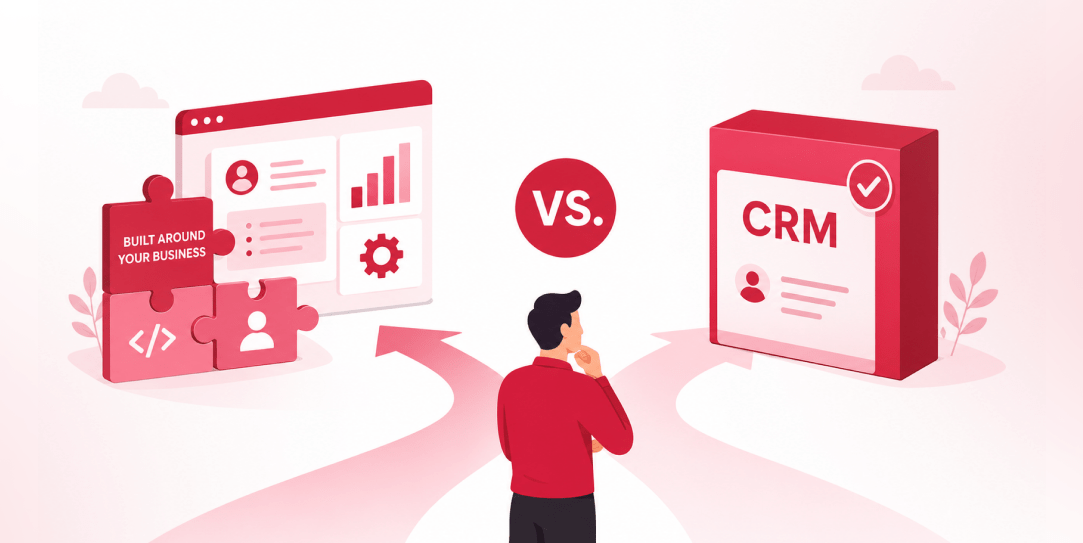
SaaS CRMs win on speed. Custom wins on fit and ownership. This isn’t a pitch for either one. Every early-stage SaaS company hits this decision within the first year, usually right after the founder realizes a spreadsheet isn’t a CRM. The default answer is almost always a SaaS CRM: HubSpot, Salesforce, Zoho, sign up in […]
 Other
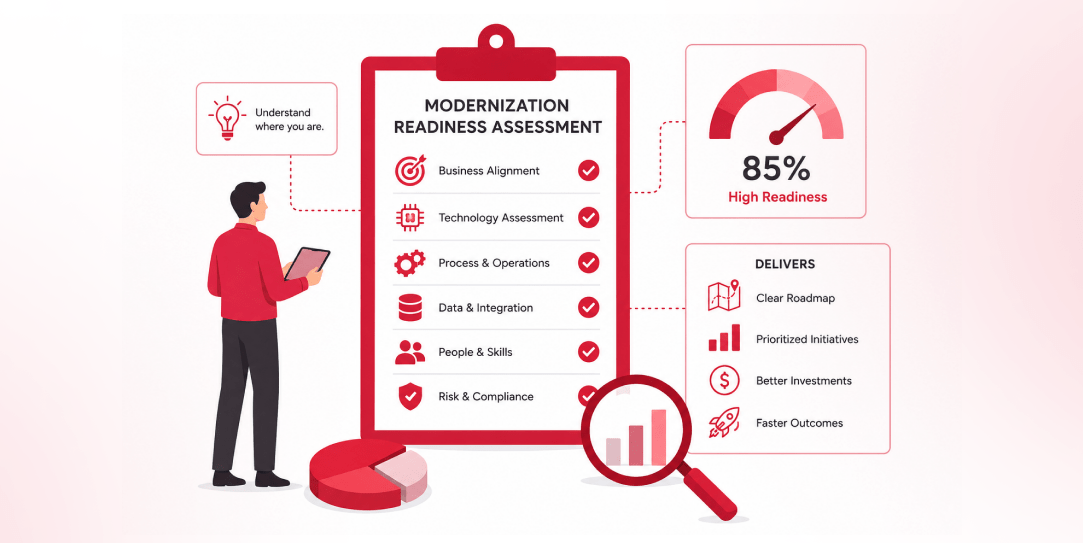
Most “audits” and “assessments” promise clarity but deliver a sales deck with language that lacks clarity. You book the call expecting evidence about your specific platform, and what shows up is a generic pitch for whichever package is easiest for the firm to sell. That’s the actual reason process transparency matters here, not because a […]
 Other
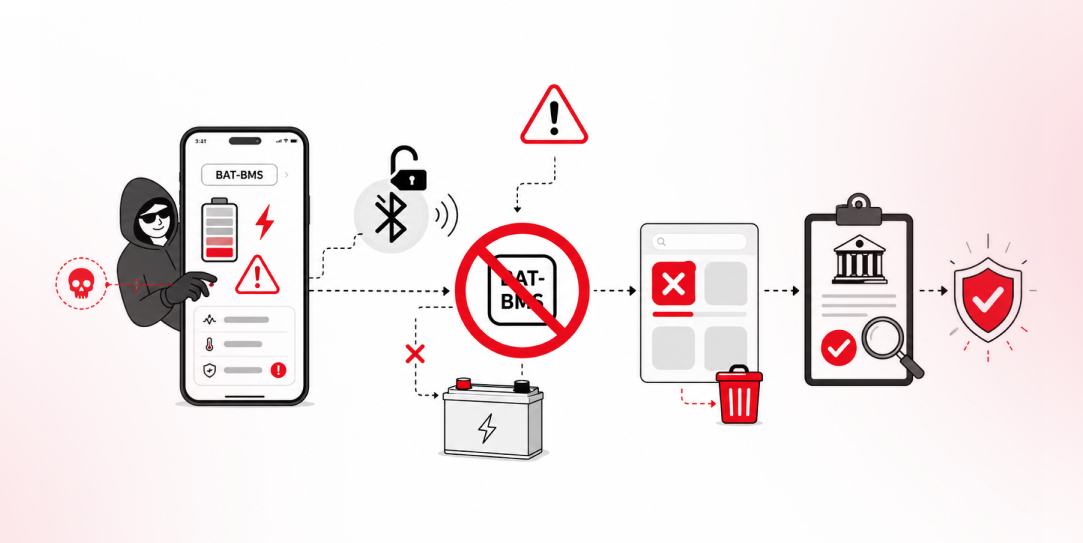
In late June and early July, videos started circulating on Instagram of people walking up to moving e-rickshaws, tapping a phone, and watching the vehicle lose power mid-ride. It spread as a prank trend before anyone fully understood the mechanism. Drivers in Patna (India) reported it first, assuming mechanical failure, until investigators traced it to […]
