Installing Deepseek Locally: A Step-by-Step Guide

 Team LN Webworks
·
18 Oct, 2025
Team LN Webworks
·
18 Oct, 2025
Team LN Webworks
·
18 Oct, 2025
Team LN Webworks
·
18 Oct, 2025
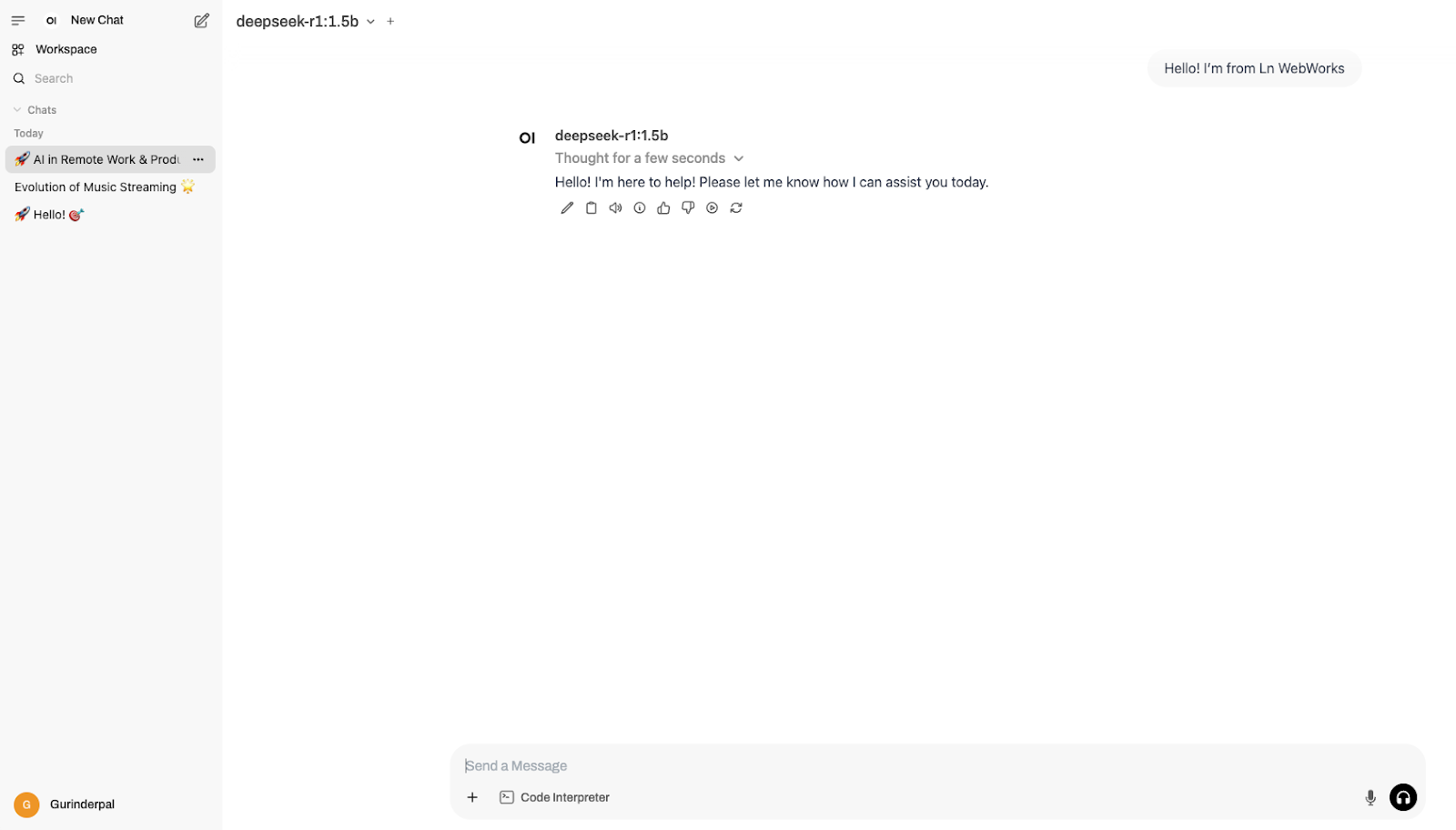
In this post, we’ll walk through the process of installing DeepSeek on your local machine using Ollama and Docker. DeepSeek provides powerful search capabilities powered by deep learning, and this guide will help you set it up quickly with a dedicated frontend UI.
Before you begin, ensure you have the following installed on your machine:
Ollama is the platform from which you can run DeepSeek. To get started:
Navigate to [ollama.com](https://ollama.com/) and follow the installation instructions for your operating system.
Open your terminal or command prompt and run:
```bash

 ollama --version

 ```
This command should display the installed version of Ollama, confirming the installation was successful.
Once Ollama is installed, you can start the DeepSeek server:
Open your terminal and run the following command:
```bash

ollama run deepseek-r1:1.5b

```
This command starts DeepSeek as a background server using the specified version (`deepseek-r1:1.5b`). You should see output confirming that the server has been initiated.
To interact with DeepSeek through a user-friendly interface, you’ll set up a Docker container running a frontend UI.
Navigate to your project folder and create a new directory called `web-ui`.
```bash

mkdir web-ui && cd web-ui

```
In the `web-ui` directory, create a file named `docker-compose.yml` with the following contents:
“`yaml
version: ‘3.8’
services:
open-webui:
image: ghcr.io/open-webui/open-webui:latest
container_name: open-webui
restart: unless-stopped
ports:
– “3001:8080”
environment:
– TZ=UTC
volumes:
– open-webui-data:/app/data
volumes:
open-webui-data:
“`
– Pull the latest `open-webui` image.
– Map port `8080` inside the container to port `3001` on your host.
– Restart the container unless it is stopped manually.
– Use a persistent volume (`open-webui-data`) to store UI data.
Run the following command from within the `web-ui` directory to start the UI container in detached mode:
```bash

docker compose up -d

```
Depending on your CPU and system performance, the container may take up to one minute to fully start.
Once the server and UI container are running:
Allow about a minute for the Docker container to initialize completely.
Open your web browser and navigate to:
```

http://localhost:3001

```
You should now see the DeepSeek interface, allowing you to interact with the search functionalities powered by the DeepSeek server.
By following these steps, you have successfully installed DeepSeek locally using Ollama and Docker. This setup not only provides a robust backend powered by deep learning but also a clean and accessible frontend UI to interact with it. Enjoy exploring and leveraging DeepSeek’s capabilities in your local environment!
If you’re looking to take AI integration further, LN Webworks can help you seamlessly incorporate artificial intelligence into your website. Whether it’s enhancing user experience, automating workflows, or building intelligent web applications, our expertise in custom web development ensures cutting-edge solutions tailored to your needs. Contact us to explore the possibilities of AI-driven innovation!
 AI & Enterprise Strategy, Artificial Intelligence
A ranked list of ten specific AI products is out of date by the time it publishes. New tools launch weekly, existing ones get renamed or absorbed, and the winner in any given category six months from now is genuinely unclear. What does not change nearly as fast is the shape of the problems AI […]
 AI & Enterprise Strategy, Artificial Intelligence, SaaS Development, Web Development
A year ago, “vibe coding” was a term for weekend prototypes. It is not that anymore. Prompt-to-app platforms have made it possible to describe a working application in plain language and have one generated in minutes, and that capability has moved from novelty to default across a huge share of new software, including a meaningful […]
 AI & Automation, AI & Enterprise Strategy, Artificial Intelligence
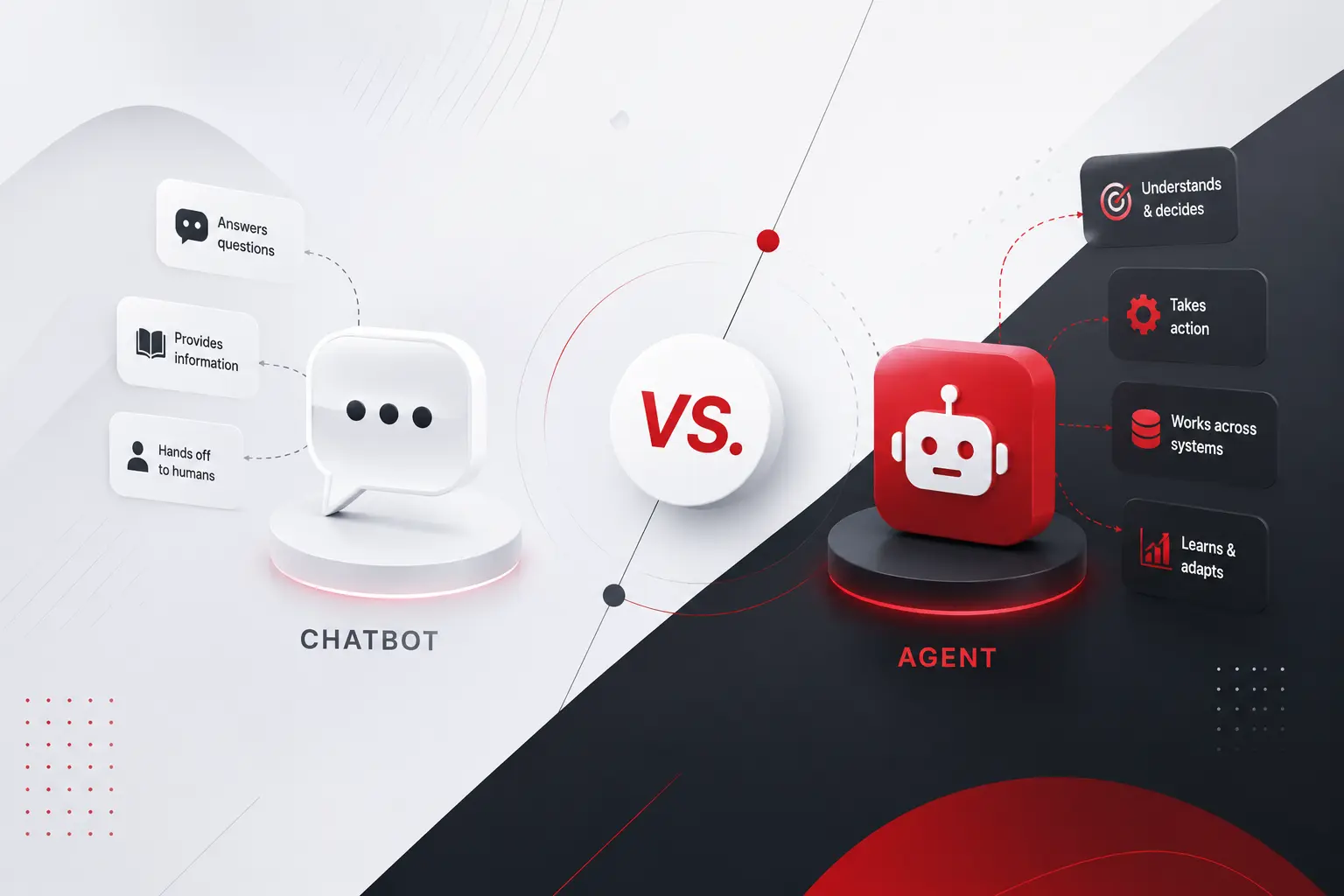
Call center chatbot. Virtual assistant. AI agent. Copilot. Half the vendors selling you software right now use these words interchangeably. The other half use them to mean completely different things, sometimes on the same product page. That confusion is not just annoying marketing copy. It changes what you should actually build, what it should cost, […]