How to Run the Next.js website from inside the subdirectory path

 Team LN Webworks
·
21 Sep, 2026
Team LN Webworks
·
21 Sep, 2026
Team LN Webworks
·
21 Sep, 2026
Team LN Webworks
·
21 Sep, 2026
As we all know, Next.js is being used extensively nowadays for various purposes, with integrations across many languages and frameworks for instance, integrating a Web3 wallet in Next.js using RainbowKit is one such use case teams are building today. While I was engaged in similar work, I encountered the task of serving the site at a subdirectory of an existing site. Initially, I didn’t consider it a serious challenge until I delved into it and realized that there was little to no information available online regarding how to accomplish it, or even if it was possible at all. This prompted me to take a closer look and tackle the issue head-on.
This guide covers how to run the Next.js website from inside the subdirectory path | LN Webworks a setup that requires careful configuration from the start. Follow these steps to establish the project foundation correctly.
npx create-next-app@latestcd your-project-name.env file in the project root directory.env file:NEXT_PUBLIC_SITE_URL_PROD="https://www.example.com/nextjs"
This completes the basic Next.js setup with environment configuration. Verify the project runs correctly by executing npm run dev in the terminal. If it loads without errors, proceed to the next step. If not, review the setup steps and resolve any issues before continuing.
The primary file to edit for subdirectory support is next.config.ts (for TypeScript projects) or next.config.mjs. Open that file — it should look like this:
// @ts-check /** @type {import('next').NextConfig} */
const nextConfig = { /* config options here */ }
module.exports = nextConfig
To make the project work within a subdirectory of an existing site, apply the following changes:
const isProd = process.env.NODE_ENV === 'production' this checks whether the application is running in production mode.
/** @type {import('next').NextConfig} */
const nextConfig = { assetPrefix: isProd ? process.env.NEXT_PUBLIC_SITE_URL_PROD : undefined, trailingSlash: true, }
module.exports = nextConfig
This option prepends a prefix to all assets used in Next.js. By default, Next.js serves assets from /_next/. With this configuration, assets will be served from www.example.com/nextjs/_next/, ensuring the site loads its resources correctly from the subdirectory path.
This setting appends a trailing slash to all routes. For example, the about page changes from /about to /about/. This behavior works more reliably with Nginx and is recommended for subdirectory deployments.
When following the guide on how to run the Next.js website from inside the subdirectory path, the assetPrefix option is a critical configuration setting. It prepends a defined prefix to every asset that Next.js loads. By default, Next.js serves assets from /_next/. With assetPrefix set to your production URL, assets are instead served from www.example.com/nextjs/_next/, ensuring the application resolves its resources correctly when running inside a subdirectory rather than at the root of a domain.
When following the guide on how to run the Next.js website from inside the subdirectory path | LN Webworks, the trailingSlash setting is a practical configuration detail that affects how routes resolve. Enabling it appends a forward slash to every route. For example, the about page changes from /about to /about/. This behavior is more reliable when routing traffic through Nginx and is the recommended approach for subdirectory deployments. To deploy this configuration successfully, two dependencies must be in place on the server: Nginx and Node.js. The application requires a Node.js runtime environment to execute. Install Node.js version 20 or later; installation instructions are available through the official Node.js documentation. For Nginx, download and installation instructions are available at the official guide: https://docs.nginx.com/nginx/admin-guide/installing-nginx/installing-nginx-open-source/
First, create your abc.conf file with the desired configuration for the “/nextjs” location. You can place this file in your Nginx configuration directory, typically located at /etc/nginx/conf.d/.
# /etc/nginx/conf.d/abc.conf
location /nextjs {
proxy_pass http://localhost:3000;
proxy_set_header Host $host;
proxy_set_header X-Real-IP $remote_addr;
proxy_set_header X-Forwarded-For $proxy_add_x_forwarded_for;
proxy_set_header X-Forwarded-Proto $scheme;
}
Open your main Nginx configuration file, often named nginx.conf, located in the /etc/nginx/ directory.
Look for the http block within nginx.conf. If you can’t find it, you can add it if it’s not present.
Inside the http block, add the following line to include abc.conf:
“ include /etc/nginx/conf.d/abc.conf ”
Before restarting Nginx, verify the configuration for any syntax errors using:
“sudo nginx -t”
If the syntax is okay, proceed to restart Nginx to apply the changes:
“sudo systemctl restart nginx”
After all of this config make sure to run a build of next with “npm run build” and after the build run “npm run start”
Now you can check your site running at www.example.com/nextjs 👍
To run the Next.js website from inside the subdirectory path within an existing site posed an unexpected challenge. Despite the lack of readily available information, diving into the problem head-on proved to be a valuable learning experience.
LN Webworks can help you with the process. We are known for our incredible Automated Services across the world. As a trusted company, our primary focus is the utmost satisfaction of our clients. So, reach out to us today and experience the magic we create.
 Other, SaaS Development
SaaS CRMs win on speed. Custom wins on fit and ownership. This isn’t a pitch for either one. Every early-stage SaaS company hits this decision within the first year, usually right after the founder realizes a spreadsheet isn’t a CRM. The default answer is almost always a SaaS CRM: HubSpot, Salesforce, Zoho, sign up in […]
 Other
Other
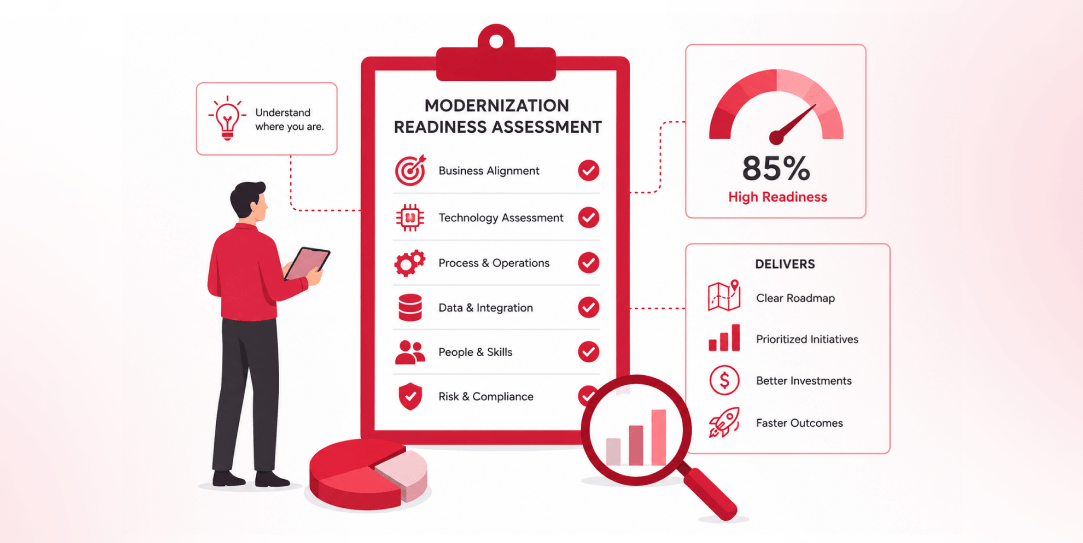
Most “audits” and “assessments” promise clarity but deliver a sales deck with language that lacks clarity. You book the call expecting evidence about your specific platform, and what shows up is a generic pitch for whichever package is easiest for the firm to sell. That’s the actual reason process transparency matters here, not because a […]
 Other
Other
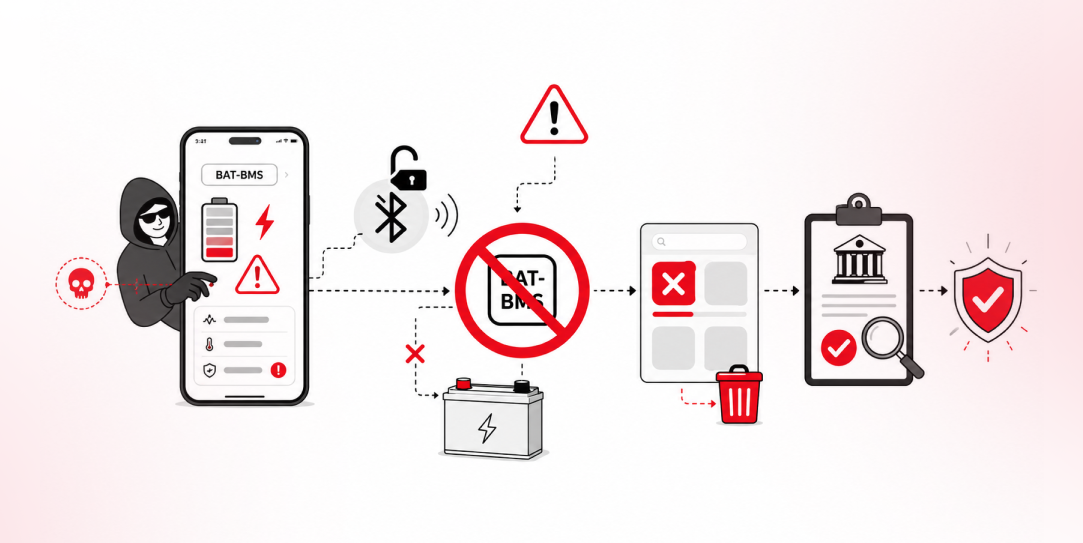
In late June and early July, videos started circulating on Instagram of people walking up to moving e-rickshaws, tapping a phone, and watching the vehicle lose power mid-ride. It spread as a prank trend before anyone fully understood the mechanism. Drivers in Patna (India) reported it first, assuming mechanical failure, until investigators traced it to […]