Drupal AI: Super Easy Guide to Setup and Try It Out
 Manpreet Singh
·
13 Apr, 2026
Manpreet Singh
·
13 Apr, 2026
AI (Artificial Intelligence) is a groundbreaking technology revolutionizing industries such as Content Management Systems (CMSs). Even though it has been more than 10 years, AI tools and their applications are continuously evolving.
Related Blog: Step-By-Step Guide To Migrating From Drupal 7 To Backdrop CMS
The Drupal AI module offers a framework that makes it easy to integrate Artificial Intelligence on any Drupal site with the help of AI. The main purpose of the AI Module is to provide a suite of modules and an API foundation for creating images, text content, content analysis, etc.
We are mixing the best features and ideas from AI Interpolator, Search AIP AI, OpenAI, and other modules in a unified framework and solution for AI in Drupal. You can use this in any major model or service. In short, it is just an abstraction layer that allows integrations with third-party AI providers, including Anthropic (Claude), OpenAI (ChatGPT, DALL-E), Fireworks, Mistral, and more. On top of that, with Olama, LMStudio, and Hugging Face integrations, you can even use open-source modules on servers you control and host. The AI module mainly focuses on foundational tools you can use out of the box or even create your path to bespoke AI integrations.
Related Blog: How To Create Your First AI Model Without Any Prior Knowledge: A Beginner’s Guide
Build Your Drupal Assistant
First, you must install a few modules to create your Drupal assistant.
To learn more about the Drupal Development Services contact LN Webworks now!
With the help of this module, you will get the framework that the ecosystems of the AI module are made of. It also includes an abstraction layer for providers such as Open AI, Anthropic, Mistral, Hugging Face, etc. It also adds an API for making assistants like Chatbots and APIs for integrating with other Drupal Core content and configuration management features.
It gives a suite of AI agents you can use in conjunction with the AI assistants framework from the AI module to empower assistants such as Chatbot to take bold actions. Imagine them as the layer that interprets between the response created by a Drupal API code and the assistant for generating a view.
Find Drupal Developers that would help you here (Click On Here)
-
Unstructured
It is a module that is dependent on the AI agents and enables the use of non-plain text documents such as PDF and images and is dependent on the AI agents.
-
Key
It is generally used for safely storing API keys and other secrets. It is also a dependency of the AI module.
Below is the command that you should use to install them all:
Each of these projects has a lot of modules, and you are required to enable some of them to get started. Here are some of the modules that you should enable:
- ai
- ai_content
- provider_openai
- ai_agents, ai_assistant_api
- ai_content_types
- ai_views
- ai_chatbot
- Unstructured
Step-by-Step OpenAI Provider Configuration
To configure, you will require an Open AI API key. Remember that it will need payment and is not a ChatGPT key.
- Navigate to Configuration > System >key and select the Add key option.
- Name the key, such as the OpenAI key, set its type to Authentication, and the provider to File or Configuration.
- Navigate to Configuration > AI > Provider settings. Select the Open AI provider, and and choose the key you made in the last step on the configuration box, then click Save configuration.
Related Blog: Top 8 API Integration Tools in 2024
Design Your Smart AI Assistant
The next step is to create an AI Assistant. It is the actual Chatbot that you are going to interact with. This is vital to create and set up the assistant to handle Drupal tasks such as updating settings or creating views using AI tools. In theIn the current version, it is assumed that you are making assistants for performing RAG (Retrieval-Augmented Generation) operations, such as searching your site’s content.
Navigate to Configuration > AI > AI Assistants and choose Add AI Assistant. Enter the given into the field on the resulting form:
- Label: “Drupal Site Building Helper”
- Description: “Assistant that helps with Drupal site building and configuration tasks.”
- Prompt: “Assisting a Drupal site administrator with building and configuring the website”
- Assistant Message: “Based on the data that you receive from the agents, offer a short answer ba
- Assistant Message: “Based on the data you get back from the agents, give a short answer back to the user. Please use paragraphs, bold and italic texts and lists to make the answer more readable.”
- Enable Agent Actions and turn them all on.
- Press Save.
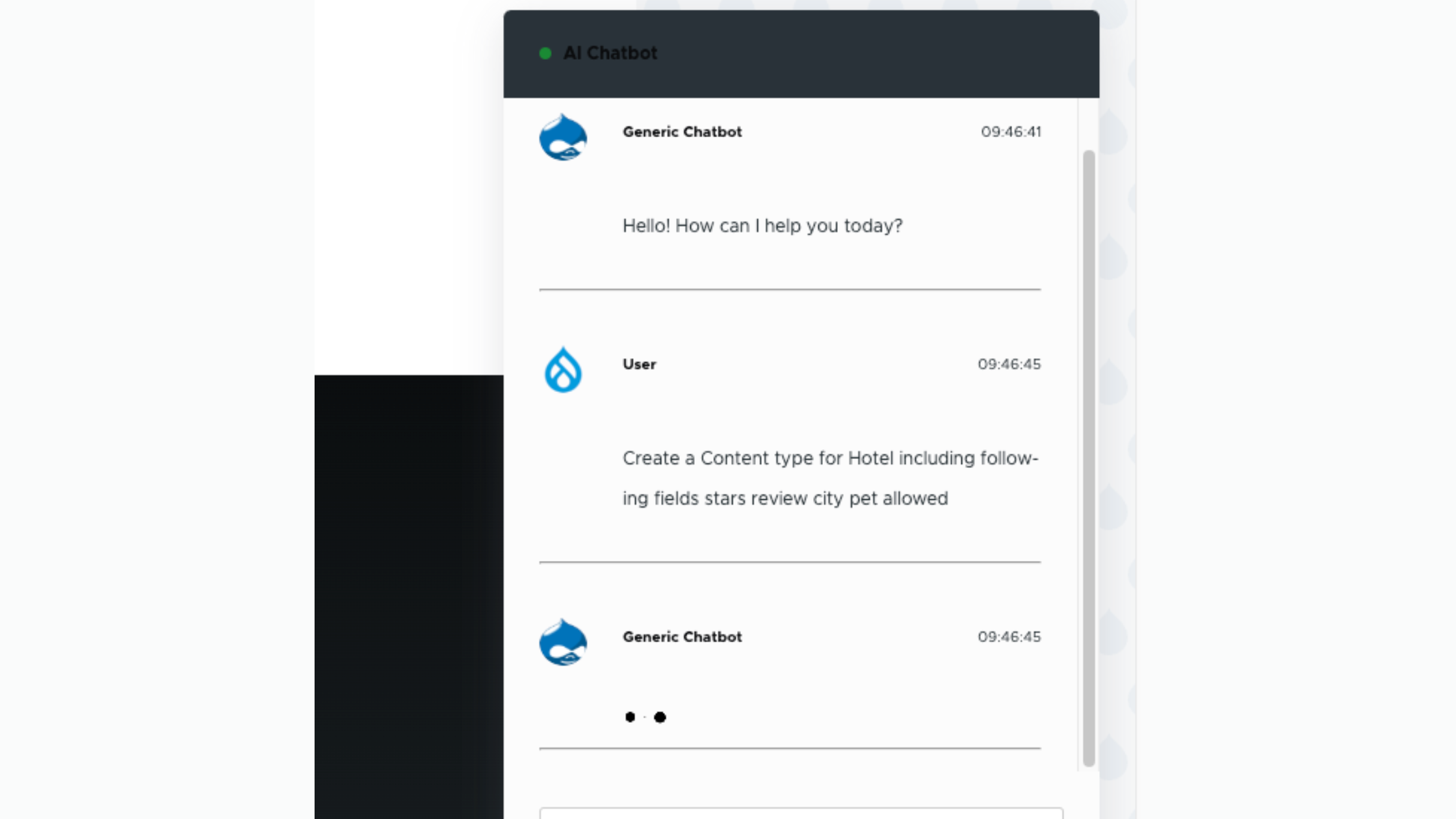
After saving, it is necessary to do some additional advanced configuration. You would be required to override the default Pre-Action Prompt for the assistant. It is an instruction and context for the LLM that allows you all kinds of things it can do and how to interact with users. The default is technically oriented towards RAG usage.
This field is not editable, so you must add the following step to the settings.php file.
$settings[‘ai_assistant_advanced_mode_enabled’] = TRUE;
After that, you can return to Configuration> AI > AI Assistants and edit your crafted assistant. In the advanced settings field should now be editable. Copy the contents from the file web/modules/contrib/ai_agents/resources/pre_action_prompt.txt and utilize it to replace the existing Pre Action Prompt; after that, you can save.
Upgrade with a Chatbot Today.
The final step is to add the AI assistant block to the page. It is a Chatbot made for administrations; let’s include it in the admin’s Content area.
Navigate to Structure > Block layout and select the tab for your admin theme; then, Place a block button for the content region. Select the AI chatbot block from the list and configure it further.
Conclusion
LN Webworks , a well known Drupal Development Company will help you unlock AI’s potential with seamless Drupal integrations. AI-powered chatbots, content creation tools, or advanced automation, we have got it all covered.
Let us help you transform your website with cutting-edge Drupal AI solutions. Ready to innovate? Reach out to LN Webworks today!
Author