Securing Your Next.js App with WebAuthn: A Passwordless Login Experience
LN Webworks
·
21 Sep, 2026
We’ll walk through the core functionalities, showcasing a secure and user-friendly login experience. If you’re also deploying this Next.js application inside a subdirectory of an existing site, check out our guide on how to run a Next.js site in a subdirectory for the configuration steps.
WebAuthn, a W3C standard, empowers secure web authentication through public-key cryptography. It eliminates the need for passwords, relying instead on a combination of usernames and biometric verification fingerprint scan or security keys. This significantly strengthens login security and streamlines the user experience.
Our Next.js application will leverage WebAuthn to achieve passwordless login. Here’s a breakdown of the key steps involved:
On the /register route, the user creates an account with a username. The application then prompts the user’s device (phone, computer) for a biometric scan or security key registration. WebAuthn generates a public/private key pair on the device. The public key is stored on the server, while the private key remains securely on the user’s device.

Inside the ‘app’ folder create another folder name ‘register’ and inside it create a file named ‘page.js’. Inside that file write the following code.
"use client";

import { useState } from "react";

import { startRegistration } from "@simplewebauthn/browser";
export default function Register() {
const [username, setUsername] = useState(“”);const handleRegister = async () => {
const optionsResponse = await fetch(“/api/register”, {
method: “POST”,
headers: {
“Content-Type”: “application/json”,
},
body: JSON.stringify({ username }),
});const options = await optionsResponse.json();
const attestationResponse = await startRegistration(options.data);
await fetch(“/api/register”, {
method: “PUT”,
headers: {
“Content-Type”: “application/json”,
},
body: JSON.stringify({ username, attestationResponse }),
});
};return (
<>
<h1>Register</h1>
<input
type=”text”
value={username}
onChange={(e) => setUsername(e.target.value)}
placeholder=”Username”
/>
<button onClick={handleRegister}>Register</button>
</>
);
}
Inside the ‘app’ folder create another folder name ‘api’ and inside it create another folder named ‘register’, then inside this folder create another file named ‘route.js’. Inside that file write the following code.
import {

generateRegistrationOptions,

verifyRegistrationResponse,

} from "@simplewebauthn/server";

import { NextApiRequest, NextApiResponse } from "next";

import { isoUint8Array } from "@simplewebauthn/server/helpers";
const rpName = “Testing Application”; // Change this to your application name
const rpID = “localhost”; // Change this to your domain
const origin = “http://localhost:3000/“; // Change this to your URLlet userDatabase = {}; // For now we can you static data registered, later a database can be used for this
export async function POST(req) {
const incomingData = await req.json();
const username = incomingData.username;
if (!username) {
return Response.json({ error: “Username is required” });
}// Generate options for the user to start registration
const options = await generateRegistrationOptions({
rpName,
rpID,
userID: isoUint8Array.fromUTF8String(username),
userName: username,
attestationType: “none”,
});// Store the options in our ‘database’
userDatabase[username] = {
…userDatabase[username],
challenge: options.challenge,
};return Response.json({
message: “Data received and decrypted”,
data: options,
});
}export async function PUT(req) {
const incomingData = await req.json();
const { username, attestationResponse } = incomingData;
const expectedChallenge = userDatabase[username]?.challenge;if (!username || !attestationResponse || !expectedChallenge) {
return Response.json({ error: “Invalid request” });
}try {
const verification = await verifyRegistrationResponse({
response: attestationResponse,
expectedChallenge,
expectedOrigin: origin,
expectedRPID: rpID,
});if (verification.verified) {
// Save the credential in our ‘database’
userDatabase[username] = {
…userDatabase[username],
credential: verification.registrationInfo,
};
return Response.json({ success: true });
}return Response.json({ error: “Verification failed” });
} catch (error) {
console.log(“error => “, error);
return Response.json({ error: error.message });
}
}
On the /login route, the user enters their username. The application initiates a WebAuthn challenge, requesting user authentication via biometrics or the security key. The user’s device leverages the private key to sign the challenge, demonstrating possession of the valid credential. The signed response is sent back to the server.
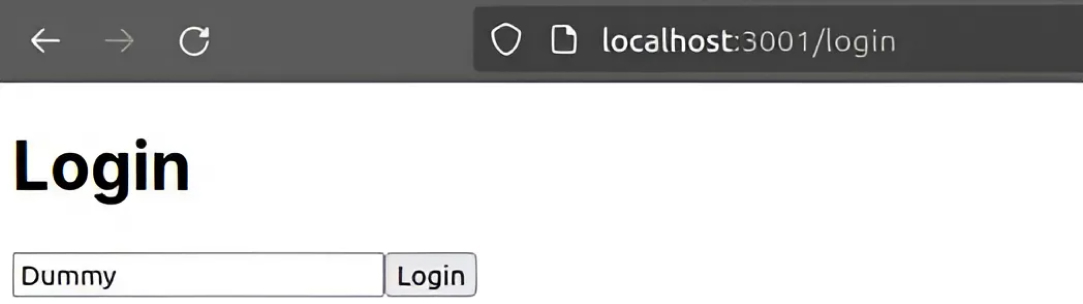
Inside the ‘app’ folder create another folder named ‘login’ and inside it create a file named ‘page.js’. Inside that file write the following code.
"use client";

import { useState } from "react";

import { startAuthentication } from "@simplewebauthn/browser";
export default function Login() {
const [username, setUsername] = useState(“”);const handleLogin = async () => {
const optionsResponse = await fetch(“/api/login”, {
method: “POST”,
headers: {
“Content-Type”: “application/json”,
},
body: JSON.stringify({ username }),
});const options = await optionsResponse.json();
const assertionResponse = await startAuthentication(options);
const loginResponse = await fetch(“/api/login”, {
method: “PUT”,
headers: {
“Content-Type”: “application/json”,
},
body: JSON.stringify({ username, assertionResponse }),
});if (loginResponse) {
alert(“Login successful”);
} else {
alert(“Login failed”);
}
};return (
<div>
<h1>Login</h1>
<input
type=”text”
value={username}
onChange={(e) => setUsername(e.target.value)}
placeholder=”Username”
/>
<button onClick={handleLogin}>Login</button>
</div>
);
}
Inside the ‘api’ folder create another folder named ‘login’, then inside this folder create another file named ‘route.js’. Inside that file write the following code.
import {

generateAuthenticationOptions,

verifyAuthenticationResponse,

} from "@simplewebauthn/server";
const rpID = “localhost”; // Change this to your domain
const origin = “http://localhost:3000/“; // Change this to your URLlet userDatabase = {}; // For now we can you static data registered, later a database can be used for this
export async function POST(req) {
const incomingData = await req.json();
const username = incomingData.username;
const user = userDatabase[username];
if (!user || !user.credential) {
return Response.json({ error: “User not found” });
}const options = await generateAuthenticationOptions({
rpID,
allowCredentials: [
{
id: user.credential.credentialID,
type: “public-key”,
transports: [“usb”, “ble”, “nfc”, “internal”],
},
],
});// Store the challenge in our ‘database’
userDatabase[username] = {
…userDatabase[username],
challenge: options.challenge,
};return Response.json(options);
}export async function PUT(req) {
const incomingData = await req.json();
const { username, assertionResponse } = incomingData;
const user = userDatabase[username];
const expectedChallenge = user?.challenge;if (!username || !assertionResponse || !expectedChallenge) {
return Response.json({ error: “Invalid request” });
}try {
const verification = await verifyAuthenticationResponse({
response: assertionResponse,
expectedChallenge,
expectedOrigin: origin,
expectedRPID: rpID,
authenticator: user.credential,
});if (verification.verified) {
return Response.json({ success: true });
}
return Response.json({ error: “Verification failed” });
} catch (error) {
console.log(“error =>”, error);
return Response.json({ error: error.message });
}
}
Run the following command to run the application.
npm run dev
Please visit localhost:3000/register in your browser and register yourself there, once done visit localhost:3000/login to login yourself on the same device, with the same username and the same biometric.
Upon receiving the signed response, the server verifies it with the public key associated with the user’s username. Successful verification confirms the user’s identity and grants access to the application. A success message is displayed to the user.
This WebAuthn integration offers several advantages:
By incorporating WebAuthn into your Next.js application, you provide a more secure and user-friendly login experience. This blog post has provided a foundational understanding of WebAuthn and its implementation within a Next.js application. Remember, this is a simplified overview, and further exploration of the WebAuthn API and security best practices is recommended for a robust implementation.
At LN Webworks, our team of seasoned experts is always ready to assist you with your digital needs. Contact us today to schedule your free consultation!

 Other, SaaS Development
SaaS CRMs win on speed. Custom wins on fit and ownership. This isn’t a pitch for either one. Every early-stage SaaS company hits this decision within the first year, usually right after the founder realizes a spreadsheet isn’t a CRM. The default answer is almost always a SaaS CRM: HubSpot, Salesforce, Zoho, sign up in […]
 Other
Other
Most “audits” and “assessments” promise clarity but deliver a sales deck with language that lacks clarity. You book the call expecting evidence about your specific platform, and what shows up is a generic pitch for whichever package is easiest for the firm to sell. That’s the actual reason process transparency matters here, not because a […]
 Other
Other
In late June and early July, videos started circulating on Instagram of people walking up to moving e-rickshaws, tapping a phone, and watching the vehicle lose power mid-ride. It spread as a prank trend before anyone fully understood the mechanism. Drivers in Patna (India) reported it first, assuming mechanical failure, until investigators traced it to […]