How to Set Up the OpenAI Module in Drupal 10
 Deepak
·
17 Sep, 2025
Deepak
·
17 Sep, 2025

For your Drupal website, the OpenAI module is a sophisticated solution that supports a wide range of OpenAI/ChatGPT functionalities. It has an API basis for smooth integration and an amazing collection of submodules.
Notably, the module was among the first to use ChatGPT for Drupal, with its initial release being in January 2023. The module is called OpenAI / ChatGPT / AI Search Integration in its entirety. Although it is still in the alpha stage, it is being developed constantly from the best drupal development company. It won’t function on older versions of Drupal because it was made especially for Drupal 10, the most recent major version.
Submodules Of OpenAI Module In Drupal
Here are some of the submodules included:
- OpenAI: This is the primary module that enables all other interactions and offers an API for the integration.
- OpenAI Audio: Drupal websites can communicate with OpenAI audio (speech-to-text) endpoints thanks to this submodule.
- ChatGPT by OpenAI: This submodule offers a form for interacting with OpenAI via the ChatGPT API endpoint in the Drupal admin dashboard.
- Create an OpenAI ChatGPT: This aids in testing new functionality by enabling the Devel module to produce more lifelike dummy material using GPT and ChatGPT models.
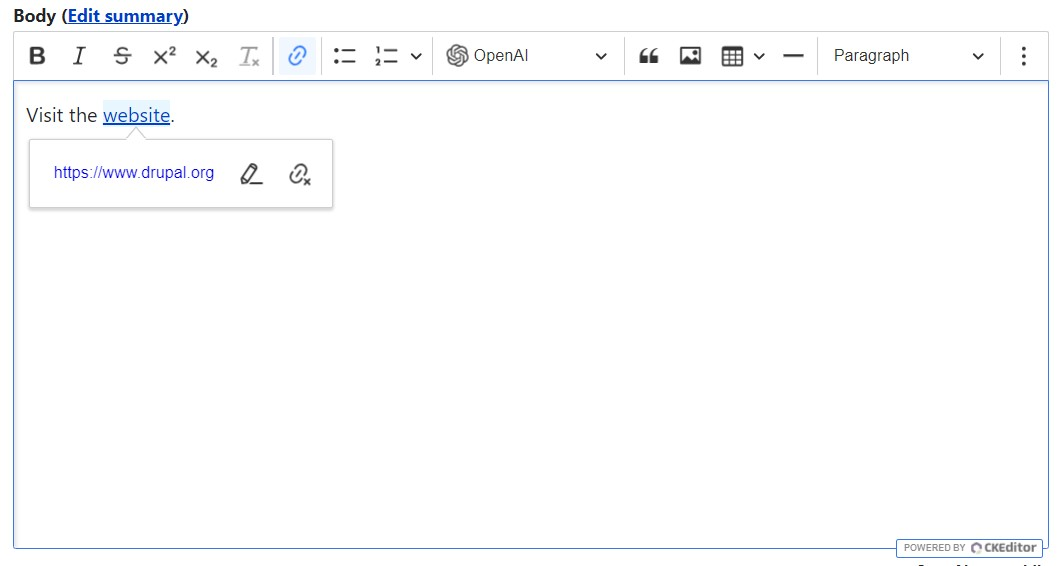
- Integration with OpenAI CKEditor: A button for CKEditor 5 that offers AI-powered help with a variety of tasks right within the text editor is added by this submodule.
- Tools for OpenAI Content: This one enhances the content editing form with a suite of Open AI-powered assistance tools.
- Embeddings of OpenAI: This submodule creates vector pictures and text embeddings by analyzing nodes using OpenAI.
- Log Analyzer by OpenAI: With its AI-powered explanations and possible fixes, this one facilitates comprehension of Drupal’s issue log entries.
- OpenAI Prompt: The Drupal admin dashboard now has a form that allows you to send prompts and get responses from OpenAI thanks to this submodule.
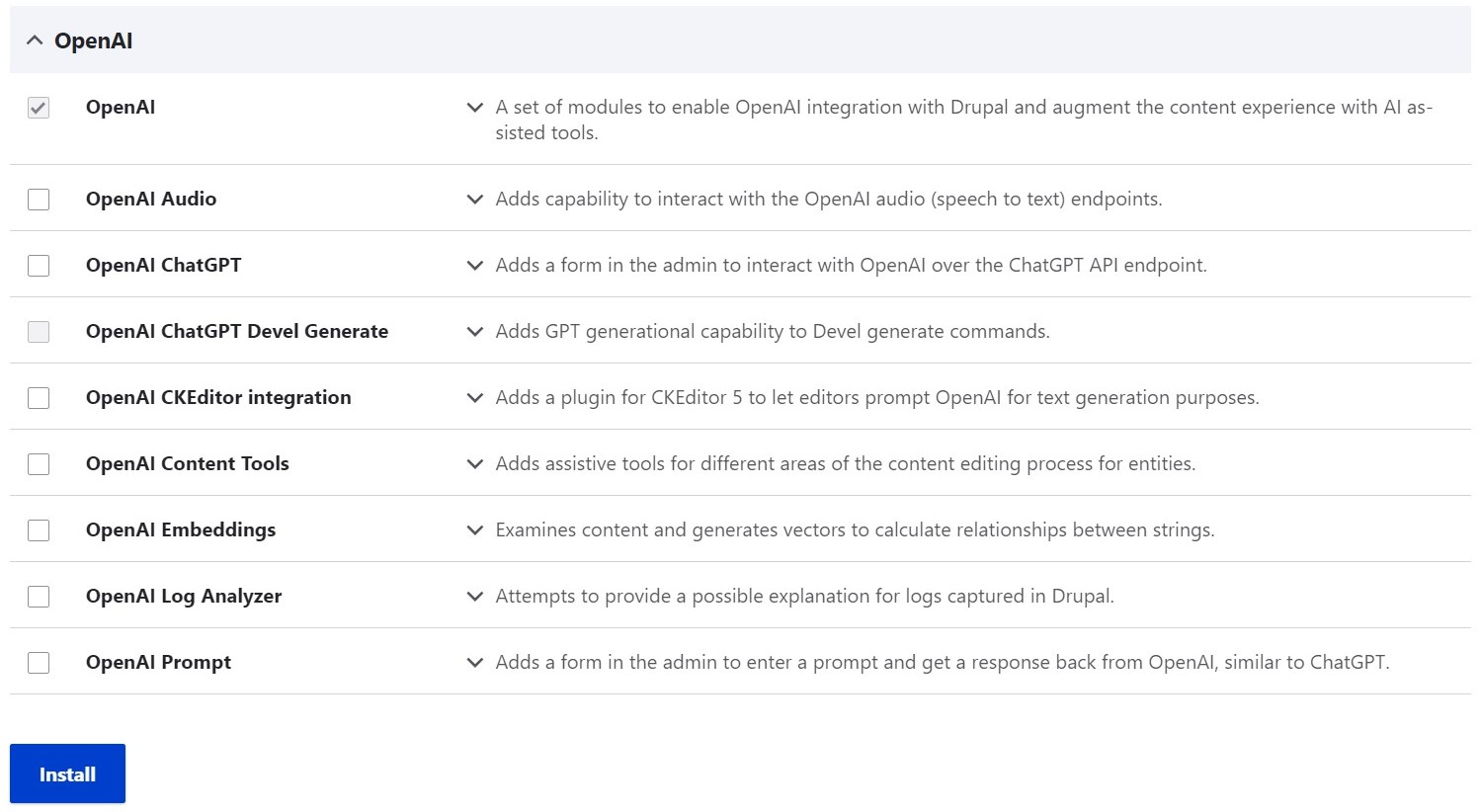
How to Integrate the OpenAI Module with Drupal: A Step-by-Step Guide
Installation And Basic Setup
Only the submodules that you want to use can be enabled once the OpenAI module has been downloaded to your Drupal 10 website.
- the OpenAI ChatGPT
- the OpenAI CKEditor integration
- the OpenAI Content Tools.
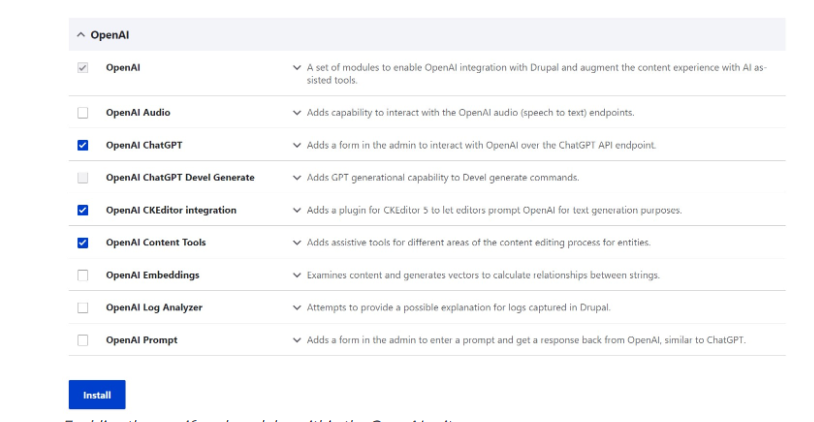
Enabling the OpenAI suite’s particular submodules.
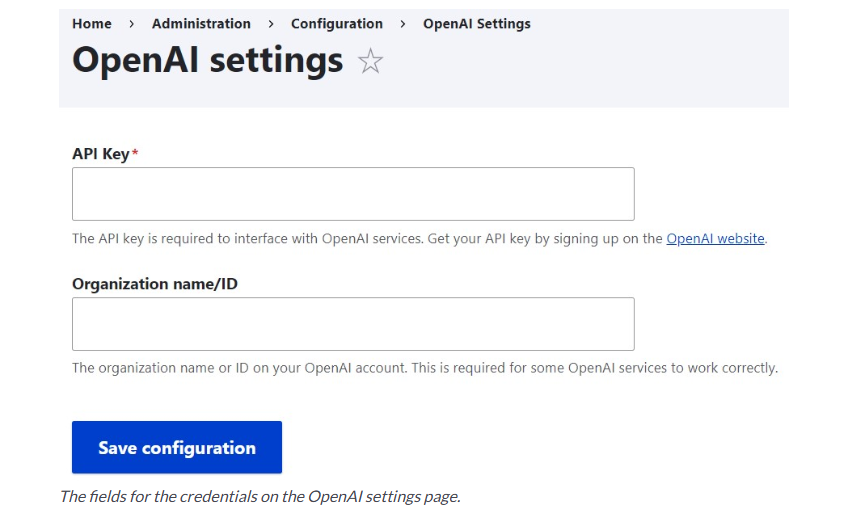
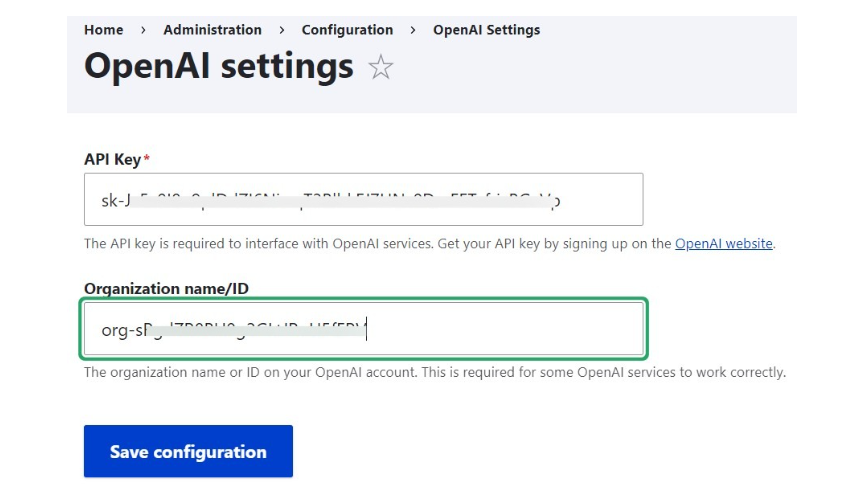
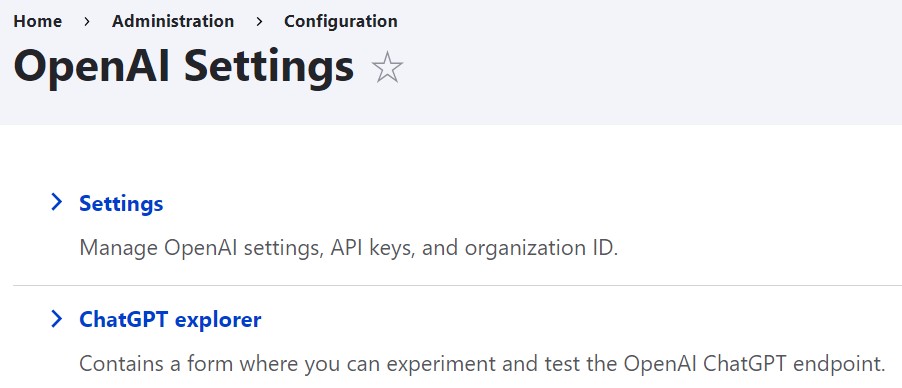
Either select “Configure” next to the primary OpenAI module on the Extend page or navigate to Configuration > OpenAI > Settings on your Drupal admin dashboard to begin the setup process. Two fields will appear for which you must enter the following information:
- API key
- organization name/ID
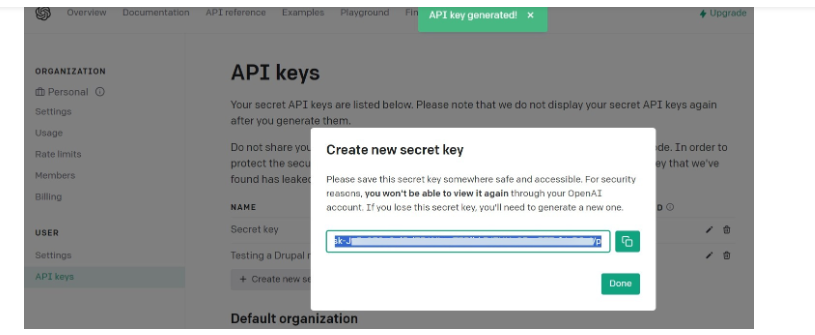
To obtain the API key, sign in to your Open AI account (or register for a new one), choose the “API” section from the user account menu on the top right, and then click “View API keys.”
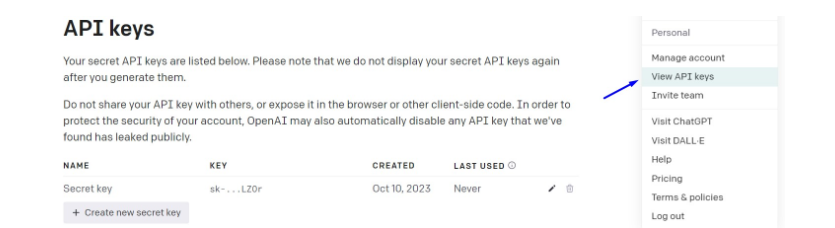
Click “Create new secret key” and optionally give it a name (e.g., “Testing a Drupal module”) since you will need to establish a new API key. Click “Done” after copying the freshly generated API key to be pasted on the Drupal website.
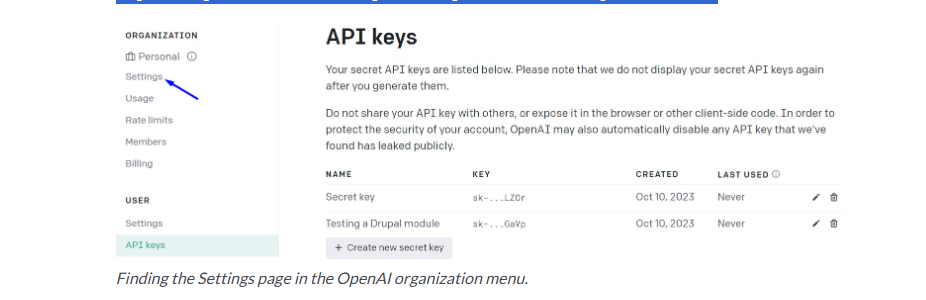
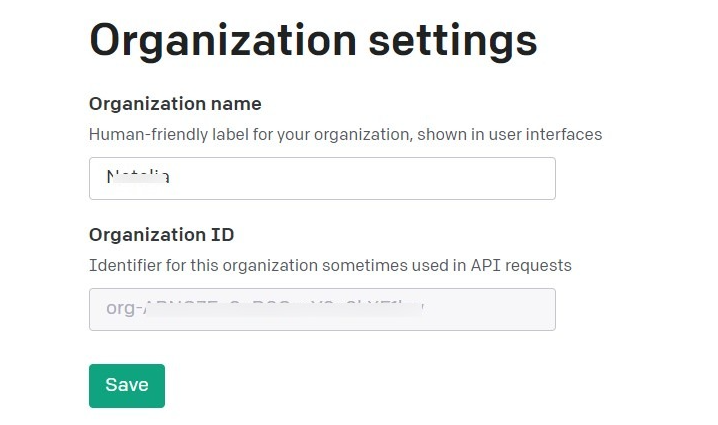
On the left-hand organization menu, select Settings to obtain the organization’s name or ID.
In general, using the organization ID in settings instead of a name reduces the likelihood of errors. Return to the Drupal site after copying the ID.
On your Drupal site’s OpenAI Settings page, fill up the relevant areas with the organization ID and the API key.
You can now proceed to use specific functionalities given by the modules’ submodules.
OpenAI ChatGPT Submodule: And How To Use It?
With the OpenAi ChatGPT submodule
With the OpenAI ChatGPT submodule enabled you can either click “Configure” next to it on the Extend page or go to the Configuration > OpenAI and open the “ChatGPT explorer” link.
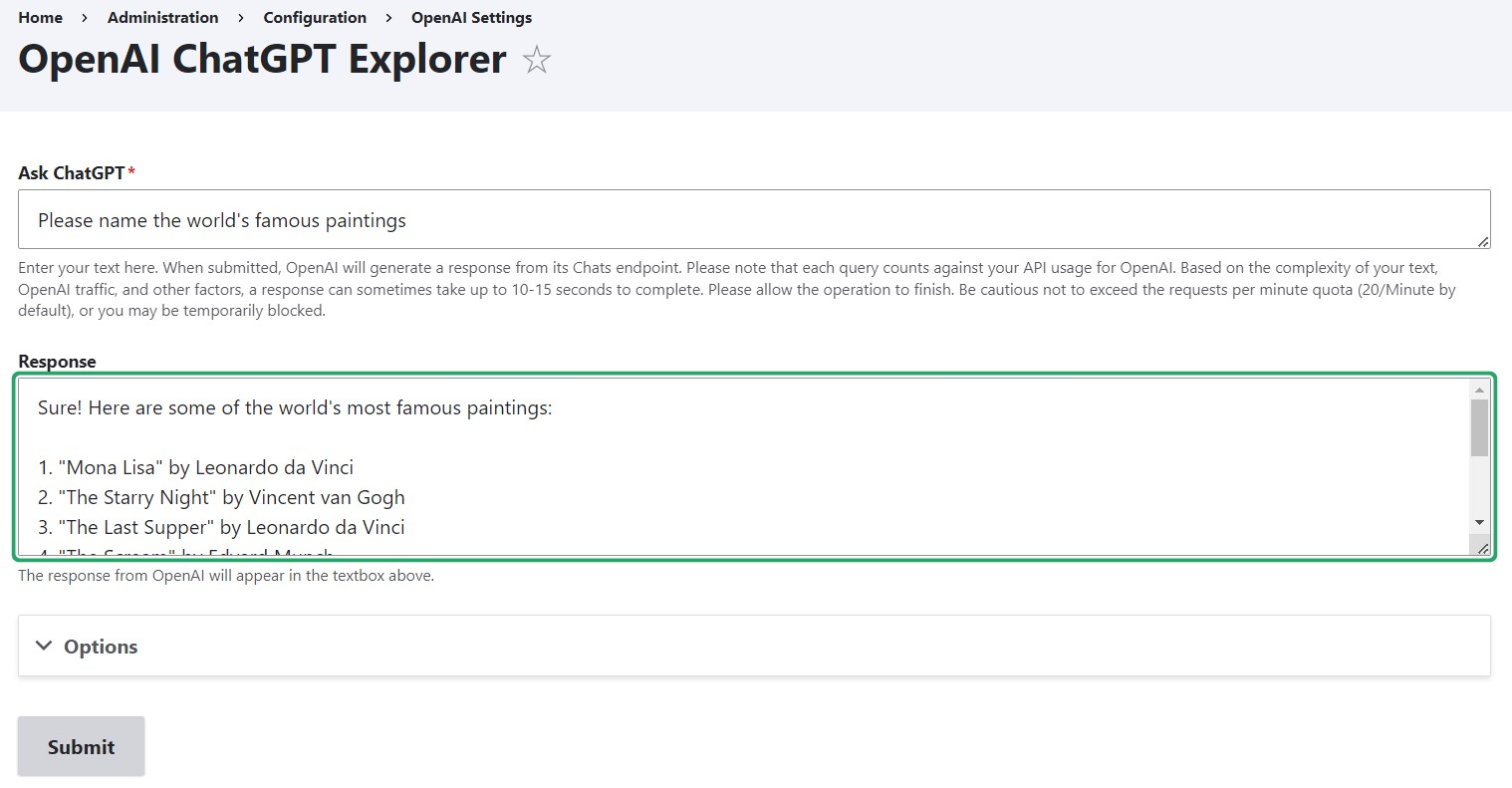
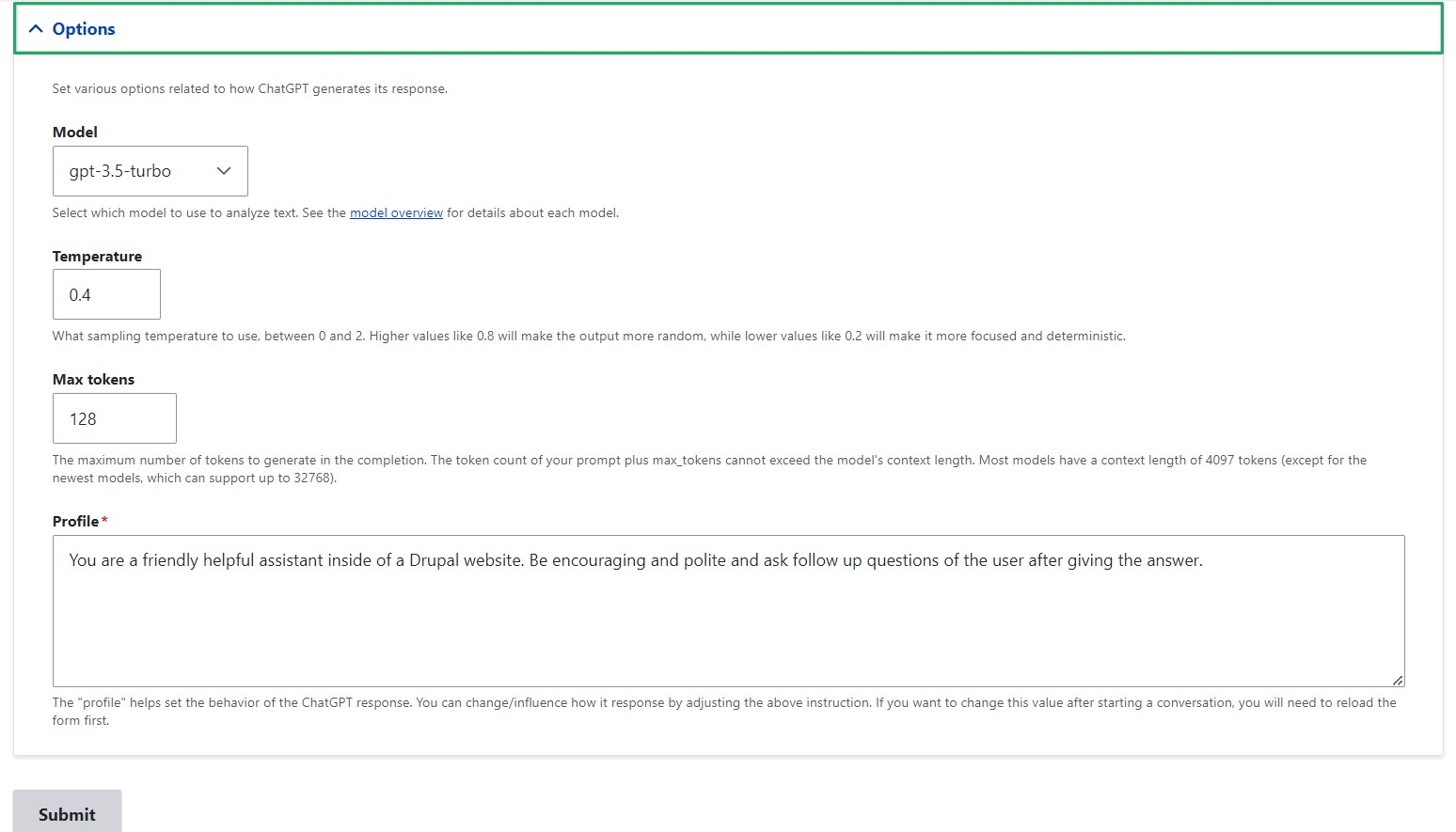
You don’t absolutely need to alter some of the options on the Options tab; instead, use the appropriate defaults. In any case, knowing what they are is helpful:
- Model: From OpenAI’s collection of models, you can choose a particular model here. In our presentation, we use the GPT-3.5 Turbo, which is the default.
- Temperature: Responses from higher temperature values (such as 0.8) can be described as more diverse, unexpected, inventive, and unpredictable. Lower temperature values (such as 0.2) are interpreted as more precise, deterministic, uncomplicated, and predictable responses.
- maximum tokens produced: In OpenAI, tokens serve as the language’s building elements. The length of a token might range from one character to one word. You can instruct the model on how lengthy or short you want its responses to be by setting a maximum token count. Regardless, they can’t go beyond the context length of your model.
- Profile: This option allows you to customize ChatGPT’s behavior; the “you’re a friendly helpful assistant” setting by default appears to be ideal.
How to utilize the integration submodule for OpenAI CKEditor?
We refer to the new CKEditor 5 when we discuss CKEditor integration because, as previously stated, the module is made for Drupal 10. The OpenAI module is one of the most intriguing Drupal modules to expand CKEditor 5 because of its integration.
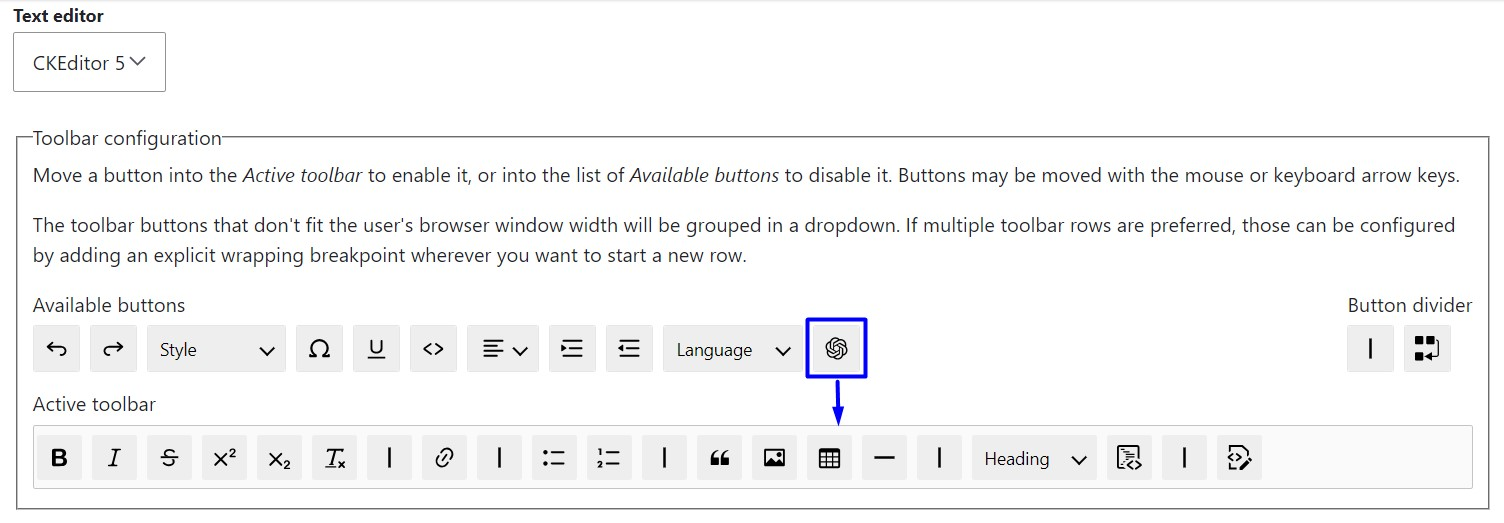
You must add the OpenAI button to the CKEditor 5 toolbar after turning on the OpenAI CKEditor integration submodule. Simply select “Configure” next to the appropriate format (Full HTML, Restricted HTML, or Basic HTML) under Configuration > Content authoring > Text formats and editors.
Drag the button from the “Available buttons” to the “Active toolbar” once you’re on the settings page for that particular format.
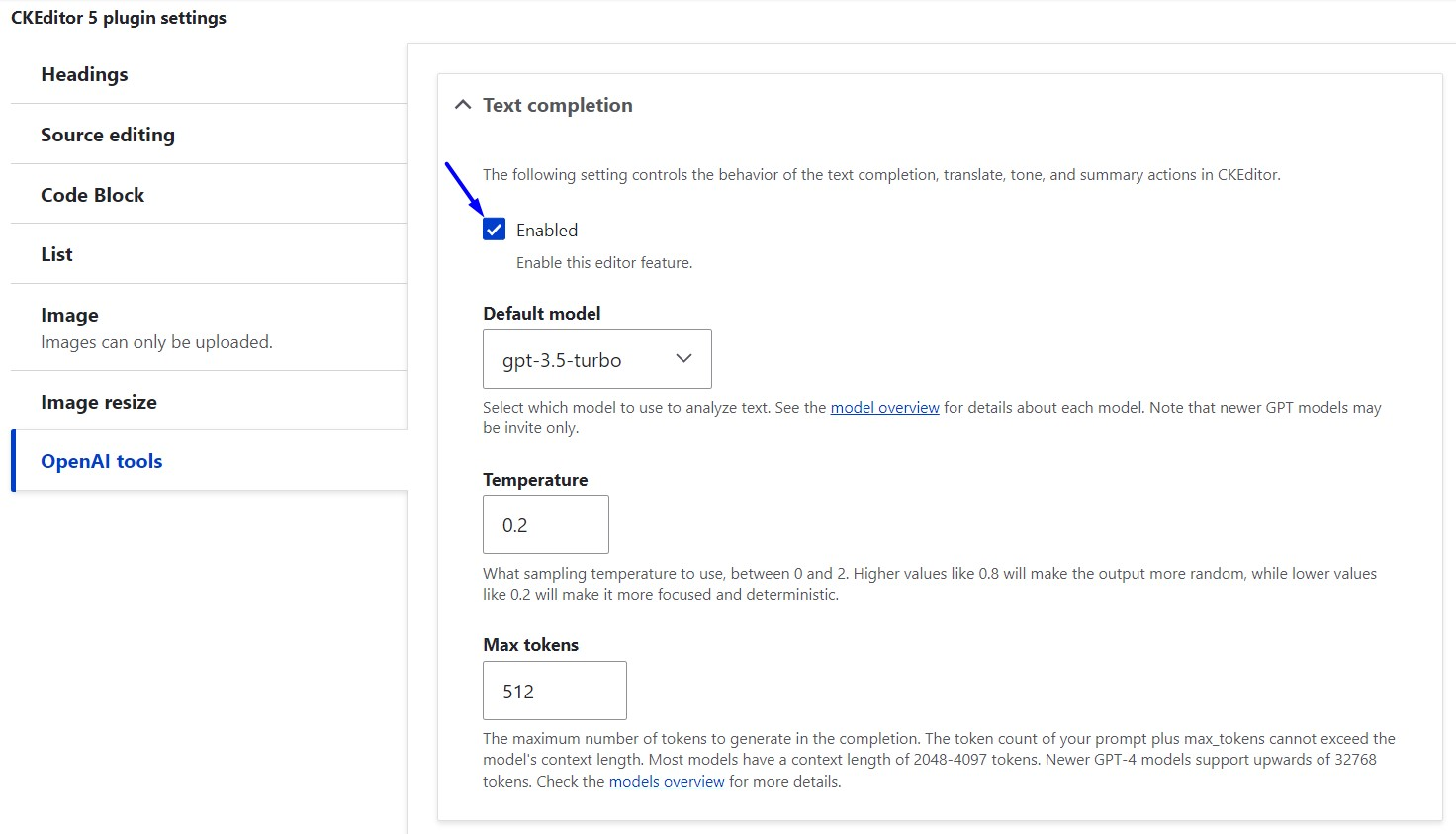
Locate the OpenAI tools plugin by scrolling down to the CKEditor 5 plugin options. Make sure to click the “Enabled” box for the “Text completion” option. The model, temperature, and maximum tokens settings are also visible to you; these are comparable to those we previously discussed in the ChatGPT submodule section.
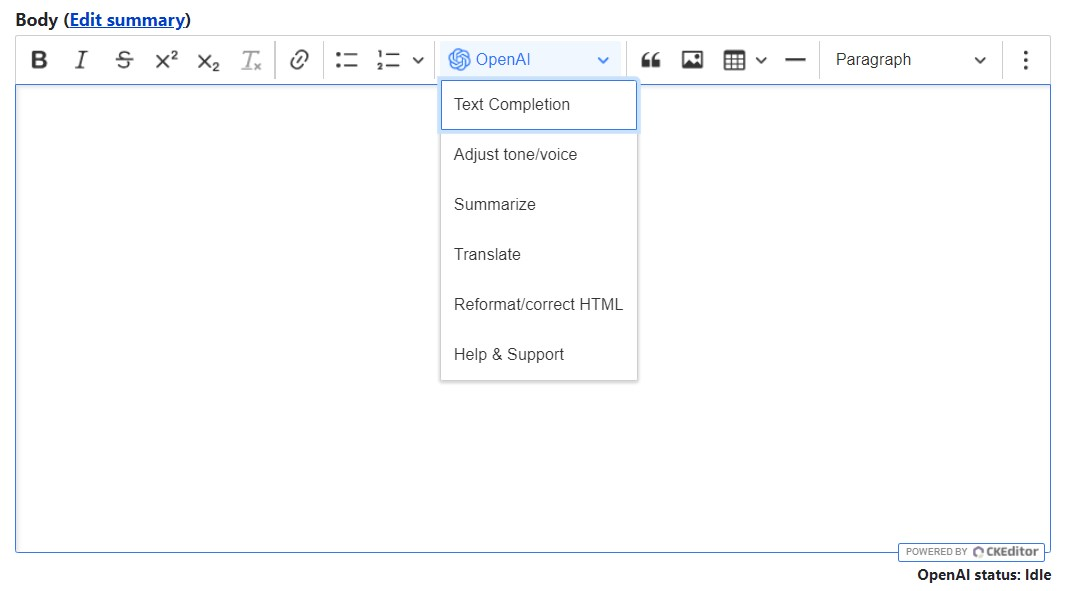
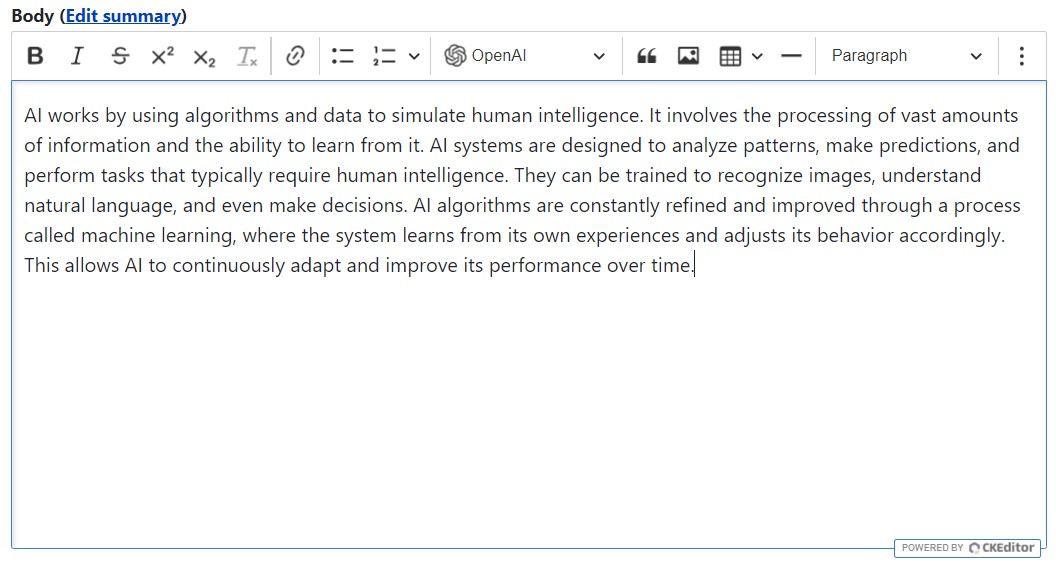
It is necessary that for other actions, you would have to choose the text first.
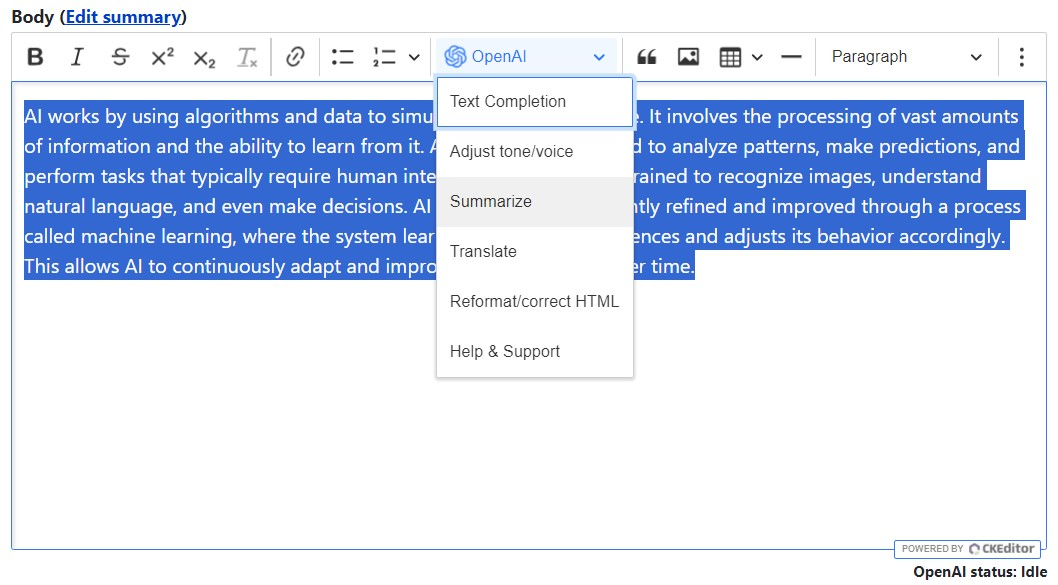
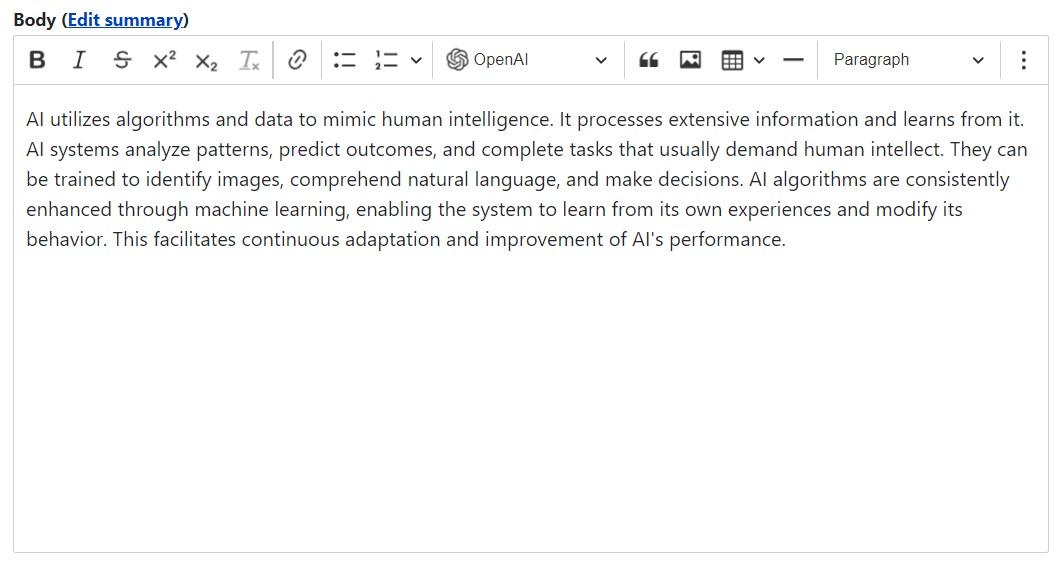
Click “Summarize” while the text is selected, and a synopsis of the content will appear.
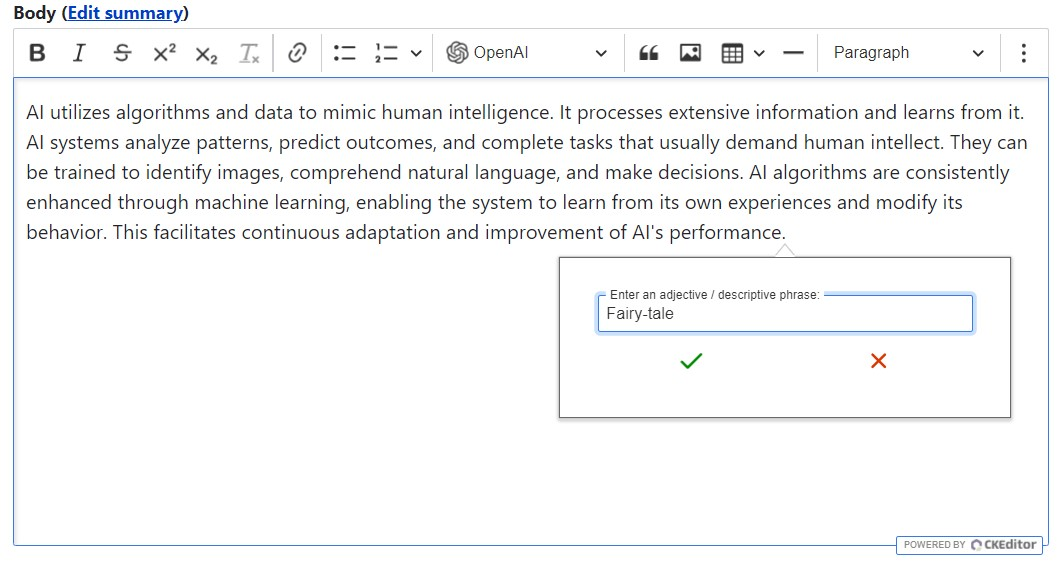
Clicking “Adjust tone/voice” in the OpenAI dropdown menu after selecting the text will display a balloon panel where you must provide an adjective or descriptive phrase that describes the tone you want. Let’s write “Fairy-tale” in this example and press the green checkmark.
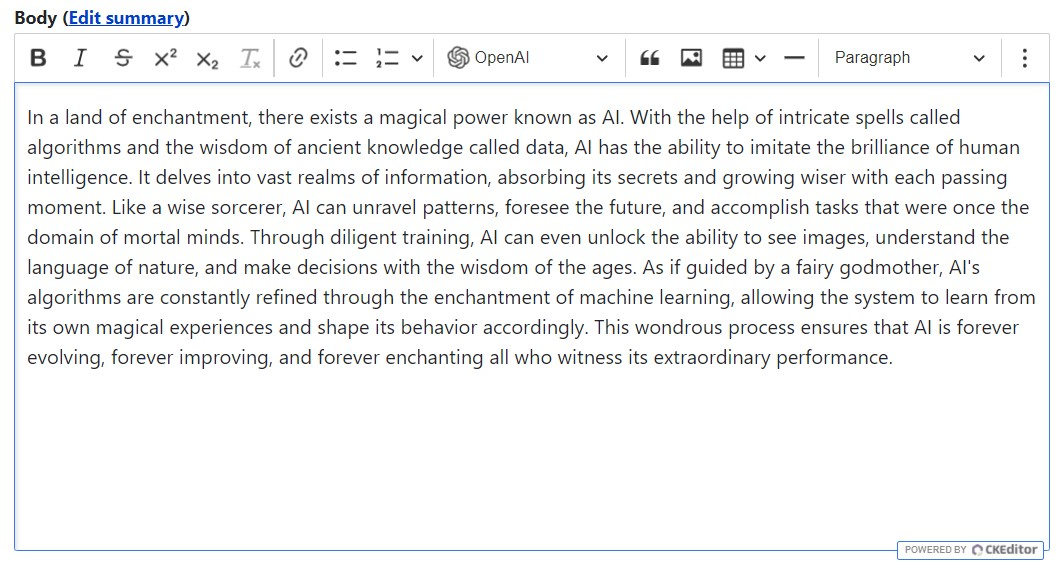
The AI text will eventually change to become genuinely magical.
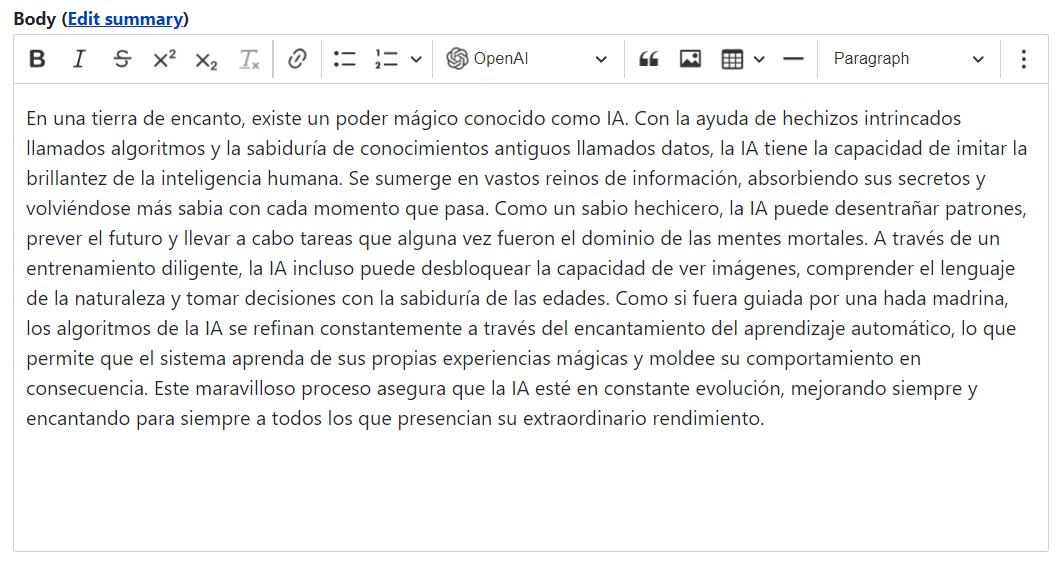
A balloon window for selecting the language will appear if you pick the text and select “Translate” from the OpenAI dropdown. In this instance, we have typed “Spanish.”
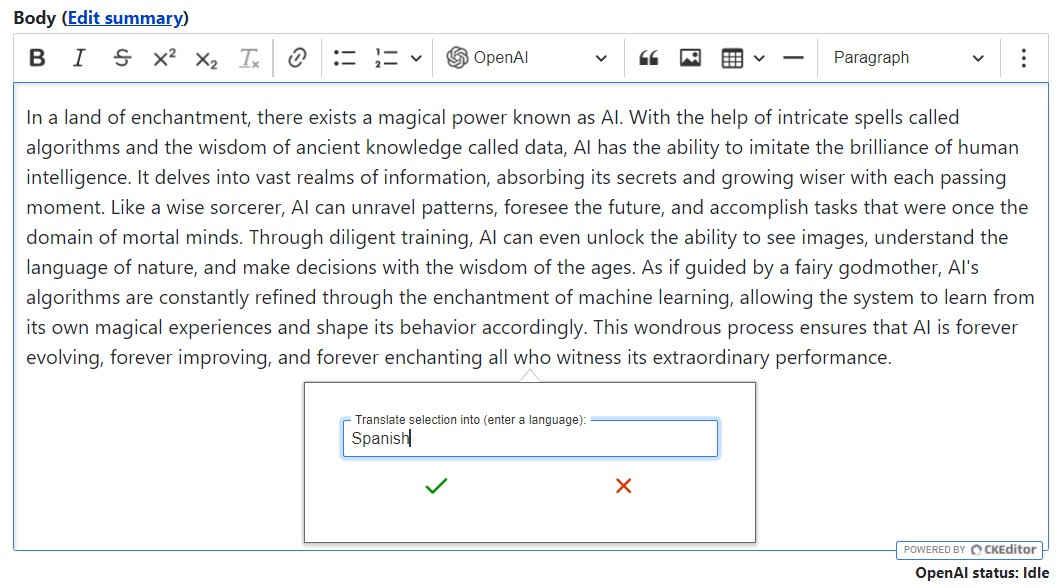
Additionally, the text section is directly translating the enchanted fairy story into Spanish.
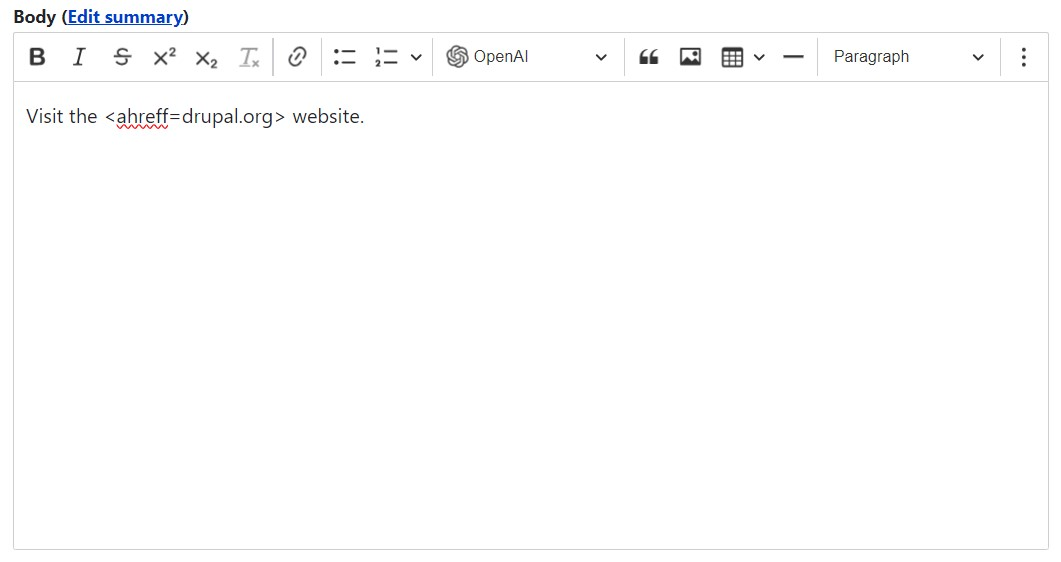
Let’s create some nonsense HTML that mimics the anchor link formatting but has clear mistakes in order to test the “Reformat/Correct HTML” choices. The fact that we’re working directly in the text field without accessing the source code is irrelevant.
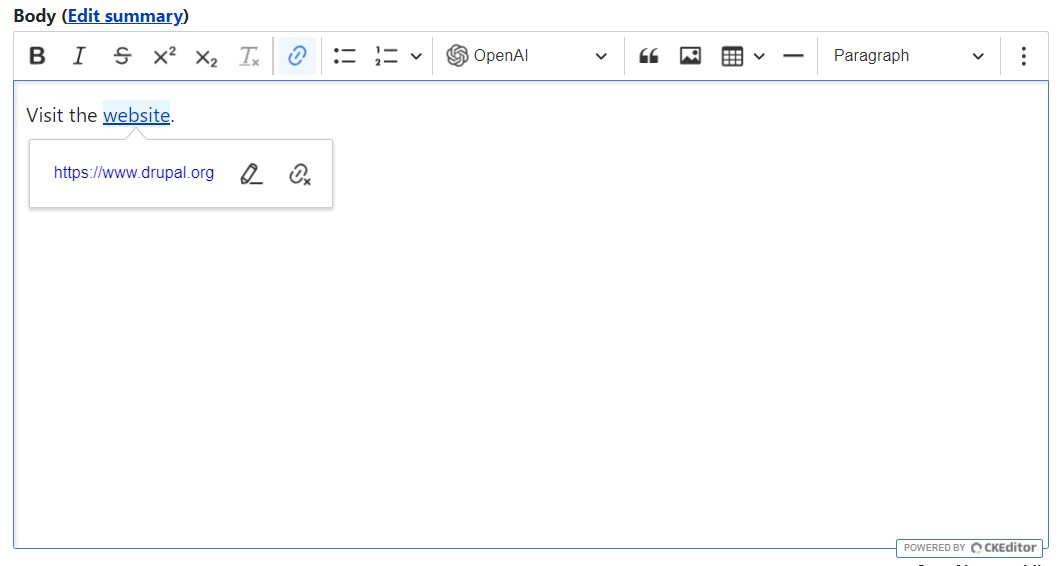
The artificial intelligence successfully fixes the HTML mistakes and generates a standard anchor link when this line is chosen and the “Reformat/Correct HTML” option is selected.
How to utilize the submodule for OpenAI Content Tools?
Additional help choices are listed on the right-hand side of the node editing form in addition to those that are directly in the text editor. The OpenAI Content Tools submodule offers them.
All of Content Tools’ recommendations simply show up in the right-hand panel; no modifications are made to the node text itself, unlike the CKEditor integration submodule. Using an example of an SEO text that was recently AI-generated in CKEditor, let’s explore what you can accomplish.
Click “Suggest taxonomy” and select the field (in this case, the body field) containing the text you like to have in the AI process.
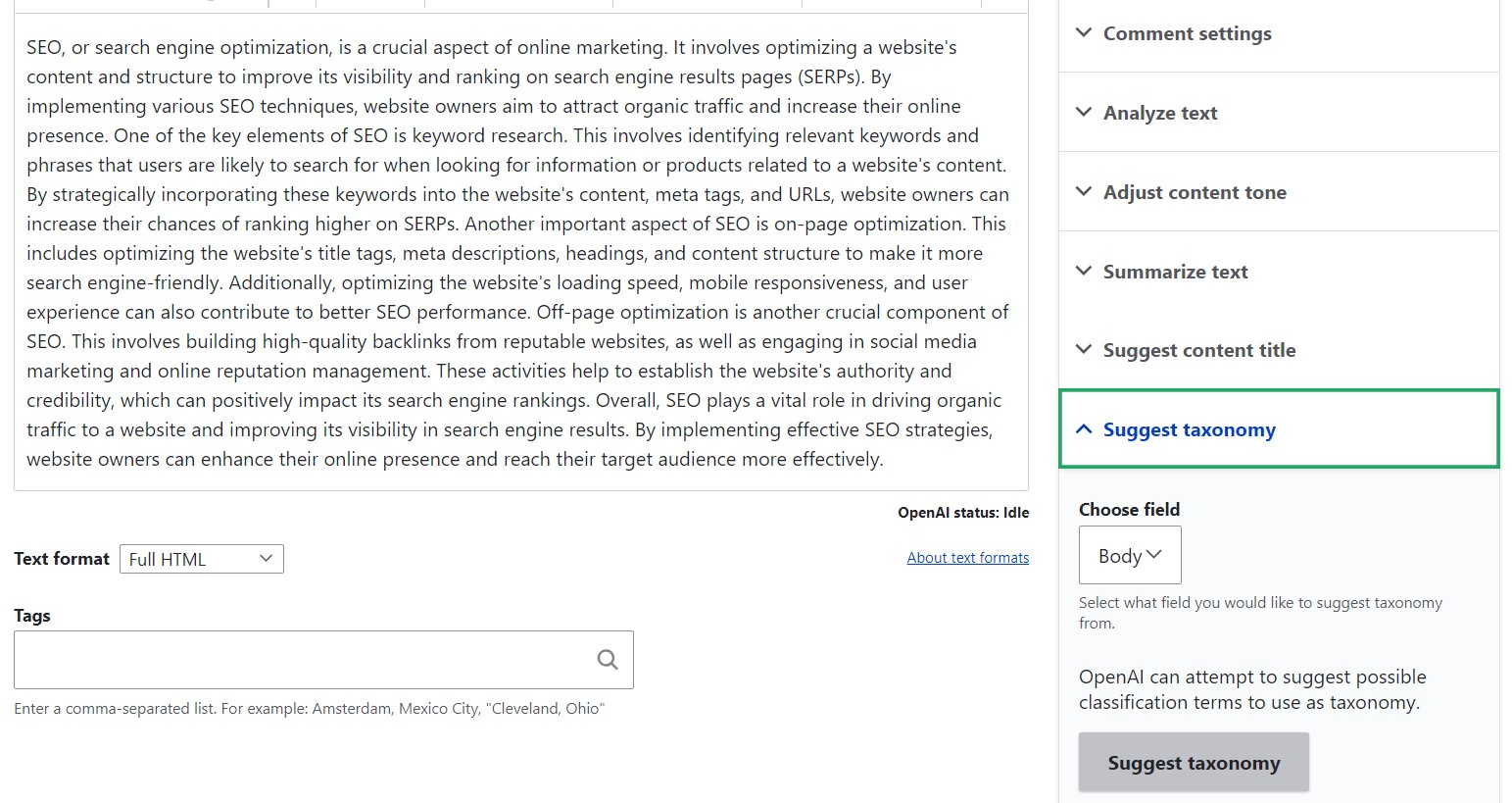
Making use of the “Suggest taxonomy” function.
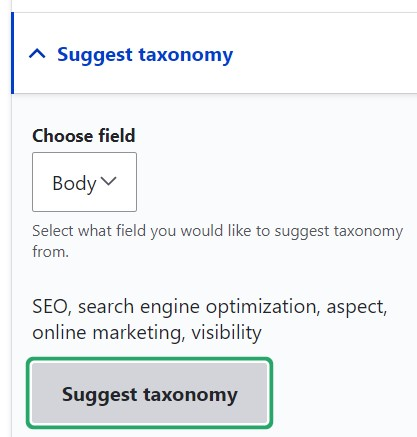
Soon, taxonomy tags suggested by AI will be displayed.
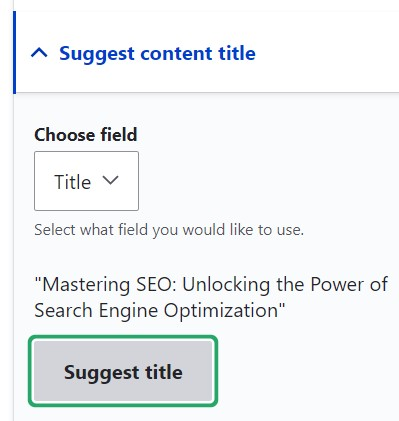
You can then ask OpenAI to “Suggest content title,” which will need you to choose the title field this time. Artificial intelligence comes up with the text’s title in a matter of seconds.
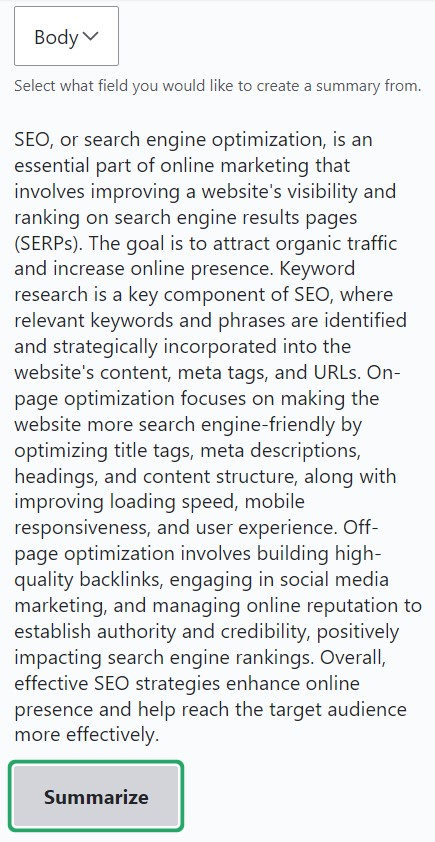
A synopsis of your text will appear if you click “Summarize” and choose the body field.
You can select the tone from the dropdown menu by selecting “Adjust content tone.” The options include “explain like I’m five,” “professional,” “helpful,” “friendly,” “high school level reader,” and “college level reader.” Choose the field for this action (in this case, body) as normal.
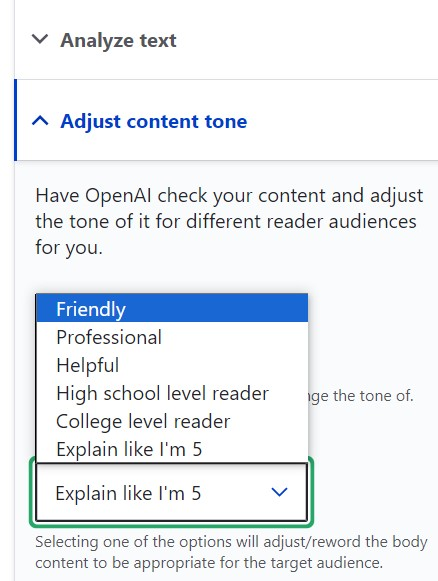
Depending on the chosen tone (in this case, “explain like I’m five”), AI offers the text option. The screenshot below displays OpenAI’s interpretation of what a 5-year-old should comprehend; it may seem a bit implausible, but our purpose is merely to show off the features.
Please take note that developing accessible material requires the use of straightforward language, and the “Adjust content tone” option may be helpful in this respect.

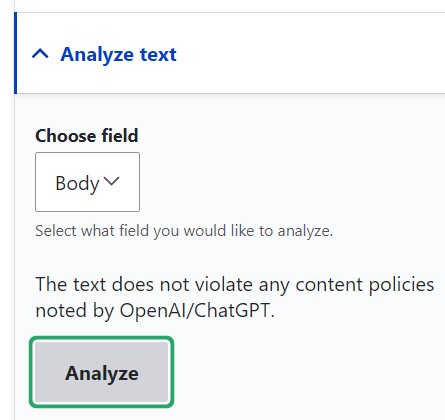
Lastly, the “Analyze text” option verifies that the text complies with different policies. As anticipated, OpenAI confirms that the text is free of any violations when we use it for the body field.
Conclusion
The OpenAI module for Drupal 10 brings powerful AI tools to your workflows. It simplifies tasks like creating content, editing, and analysis. With elements such as CKEditor and ChatGPT integration, improving productivity and user experiences is easy.
At LN Webworks, our experts help you set up and optimize these advanced Drupal features for the best performance. Contact us today to explore AI integration and Drupal development services for your website!
Author