How To Install Ansible on Ubuntu, macOS, and Windows

Deepak
·
22 Sep, 2026
Ansible is an open-source IT automation and configuration management platform designed for tasks like application deployment, provisioning, configuration management, automating daily tasks, improving security, patching systems, and orchestrating workflows. If your infrastructure work extends to telephony, our FreeSWITCH installation guide walks through setting that up too.
It is commonly used by IT professionals like sysadmins and network managers and is free to use, download, and modify.
A comprehensive infrastructure automation solution using Ansible for deploying and managing web applications across multiple environments
Infrastructure: Ansible
Web Stack : Nginx, PHP-FPM, MySQL, Redis, Solr
Security : SSH, Firewall, Fail2ban, SSL
OS Support : Ubuntu, Window, MacOS, Fedora etc.
This guide provides a detailed walkthrough for installing Ansible on three popular platforms: Ubuntu, macOS, and Windows, ensuring a seamless setup for your automation needs. Whether you’re a seasoned sysadmin or a tech enthusiast, this guide will help you get started with Ansible quickly and efficiently.
Ubuntu builds are available in a PPA here. To configure the PPA on your system and install Ansible run these commands:
sudo apt update
sudo apt install software-properties-common
sudo add-apt-repository –yes –update ppa:ansible/ansible
sudo apt install ansible
Make sure you install homebrew on MacOS first.
Install Brew use this command
“https://raw.githubusercontent.com/Homebrew/install/HEAD/install.sh)”
brew install ansible
ansible —version
1. Open PowerShell as Administrator and run the following to Enable WSL (Windows Subsystem for Linux). This, by default, will install Ubuntu as your Linux distribution.
Command: wsl –install
2. Install distributions for Linux
Command: wsl –install -d ubuntu
3. Once you have the Linux distribution installed, you will be prompted to create a user account and password.
4. After this, you should now be able to run commands on your WSL Linux Box.
In this example, we installed the Ubuntu Linux distribution and ran the following to install Ansible.
sudo apt update && sudo apt upgrade -y
sudo apt install ansible -y
#Validate Ansible installation
ansible –version
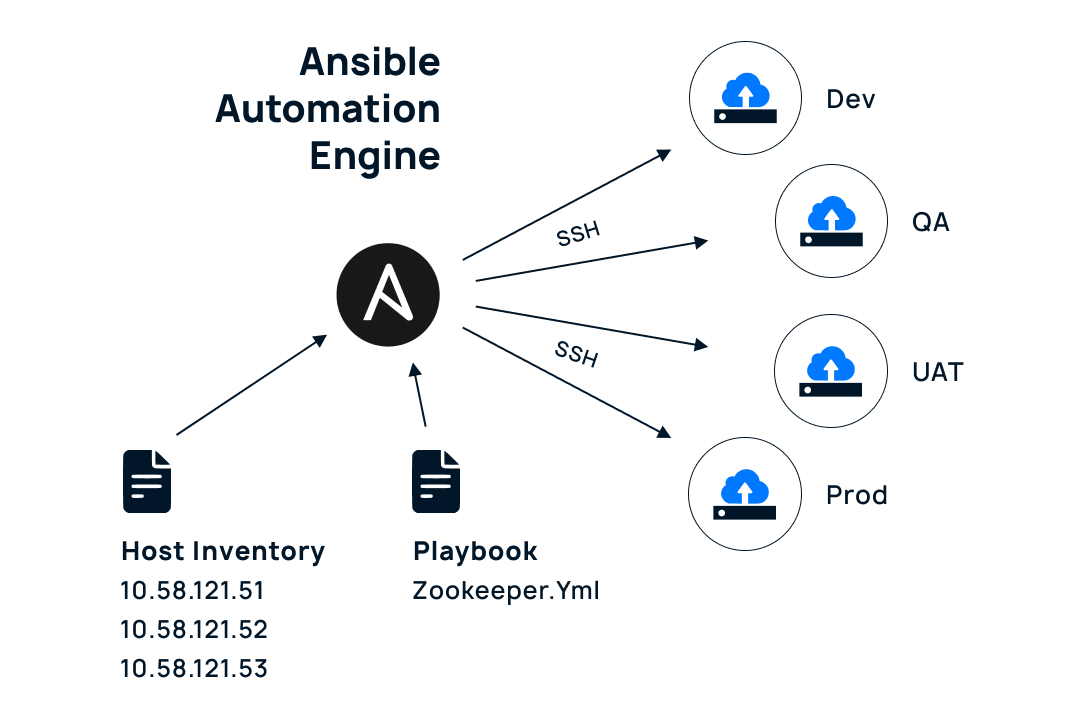
Ansible works like a remote control that:
1. Uses a list of computers (inventory) and instructions (playbook)
2. Connects through SSH to manage 4 environments:
Think of Ansible like a manager who has a list of workers (inventory) and a set of instructions (playbook), and it makes sure the same work is done correctly across all four places.
It’s similar to having one remote control (Ansible) that can control multiple TVs (different environments) using the same settings.
A collection of scripts and configurations to set up web servers automatically using Ansible. It handles everything needed for a web application: web server, database, caching, and security.
├── deploy.sh # Main deployment script
├── env/ # Environment settings
│ ├── dev.env # Development settings
│ ├── env.local # Template for settings
│ └── staging.env # Staging settings
├── inventory/ # Server lists
│ ├── dev # Development servers
│ └── staging # Staging servers
├── mysql_import.sh # Database import script
├── playbook/ # Ansible instructions
│ ├── do-firewall.yml # Firewall settings
│ ├── Lamp.yml # Main setup
│ ├── mysql_import.yml # Database setup
│ └── site_deployment.yml # Website setup
├── site_deploy.sh # Website deployment script
├── sql/ # Database files
│ └── backup.sql # Database backup
└── templates/ # Configuration templates
├── demo.conf.j2 # Website config
├── drupal-auth.conf.j2 # Drupal authentication
├── jail.local.j2 # Security config
├── redis.conf.j2 # Cache config
└── ssl.conf.j2 # SSL configuration
This guide covers the steps for setting up environments, configuring servers, and deploying your application using Ansible.
# Copy environment template
cd env
cp env.local dev.env # For development
# Edit dev.env with your settings
You will need to specify the server IPs for different environments in the inventory folder.
Go to inventory folder
Add your server IPs in dev or staging files
Once your environment is set up and the server configurations are in place, it’s time to deploy.
# For development
./deploy.sh dev
# For staging
./deploy.sh staging
# For Production
./deploy.sh prod
Run the site deployment script for each environment:
./site_deploy.sh dev # For development
./site_deploy.sh staging # For staging
./site_deploy.sh prod # For Production
Import the necessary databases for each environment using the mysql_import.sh script:
# Put your database file in sql folder
./mysql_import.sh dev # For development
./mysql_import.sh staging # For Staging
./mysql_import.sh prod # For Production
If something goes wrong during the deployment process, here’s how you can check and resolve common issues:
sudo systemctl status nginx
For issues related to the MySQL database, check its service status:
sudo systemctl status mysql
If Redis caching is causing problems, check the Redis service status:
sudo systemctl status redis
To check for errors related to Nginx, view the web server logs:
sudo tail -f /var/log/nginx/error.log
To diagnose MySQL-related issues, check the database logs:
sudo tail -f /var/log/mysql/error.log
For Redis issues, review the cache logs:
sudo tail -f /var/log/redis/redis-server.log
This infrastructure setup provides a streamlined solution for deploying and managing web applications. With one-command deployment capabilities, it sets up a complete web stack (Nginx, PHP, MySQL, Redis,Solr) across development, staging, and production environments.
Following best practices with secure defaults and organized structure, it acts like a “swiss army knife” for web deployments – turning a bare server into a fully functional web environment. Remember to always test in development before deploying to production. Should you need help, logs are available in /var/log/, and configuration files are easily accessible.
Need expert guidance? Contact LN Webworks today to ensure your deployment process is seamless and efficient!

 Other, SaaS Development
SaaS CRMs win on speed. Custom wins on fit and ownership. This isn’t a pitch for either one. Every early-stage SaaS company hits this decision within the first year, usually right after the founder realizes a spreadsheet isn’t a CRM. The default answer is almost always a SaaS CRM: HubSpot, Salesforce, Zoho, sign up in […]
 Other
Other
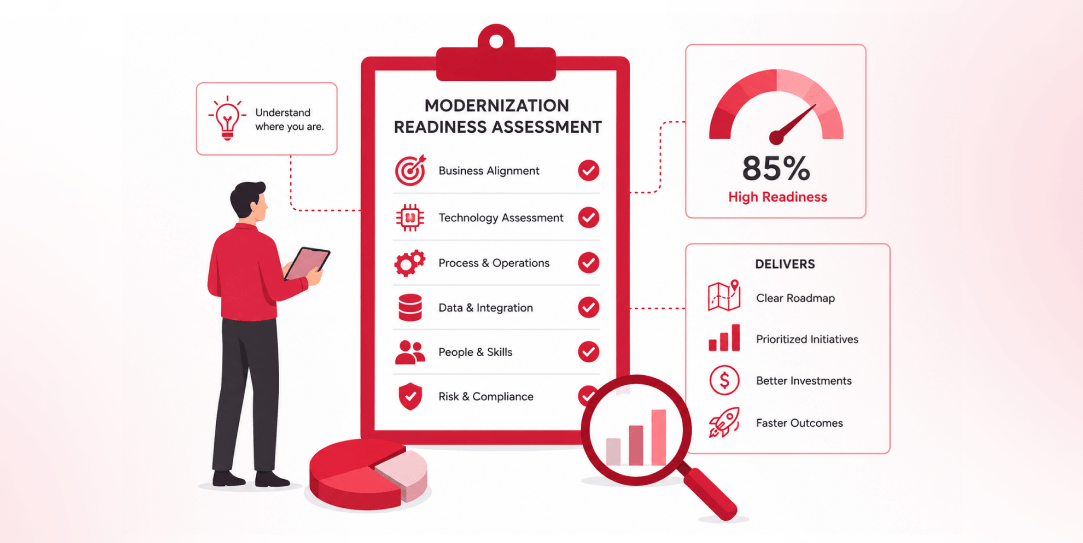
Most “audits” and “assessments” promise clarity but deliver a sales deck with language that lacks clarity. You book the call expecting evidence about your specific platform, and what shows up is a generic pitch for whichever package is easiest for the firm to sell. That’s the actual reason process transparency matters here, not because a […]
 Other
Other
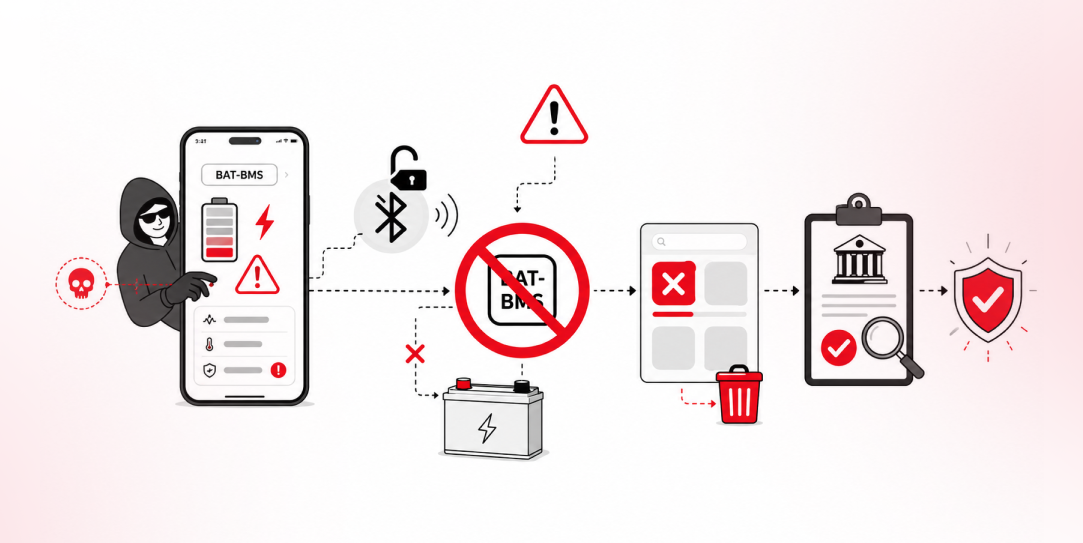
In late June and early July, videos started circulating on Instagram of people walking up to moving e-rickshaws, tapping a phone, and watching the vehicle lose power mid-ride. It spread as a prank trend before anyone fully understood the mechanism. Drivers in Patna (India) reported it first, assuming mechanical failure, until investigators traced it to […]