Step By Step Guide To Git Rebase Command
 LN Webworks
·
04 Sep, 2025
LN Webworks
·
04 Sep, 2025

Imagine you’re working on a new feature for a project. You create a separate branch from the main codebase to develop this feature without affecting the main code. When your feature is complete, you need to integrate your changes back into the main branch. This is where Git offers two options: merging and rebasing.
What is Git Rebase?
At its core, Git rebase serves as a method to reapply a series of commits onto a different base commit. Unlike the conventional Git merge, which creates a new commit to merge branches, Git rebase fundamentally alters the commit history, resulting in a linear sequence of commits.
The fundamental syntax of the Git rebase command is succinct:
git rebase <base>
This directive instructs Git to rebase the current branch onto the specified <base> branch.
How Does Git Rebase Work
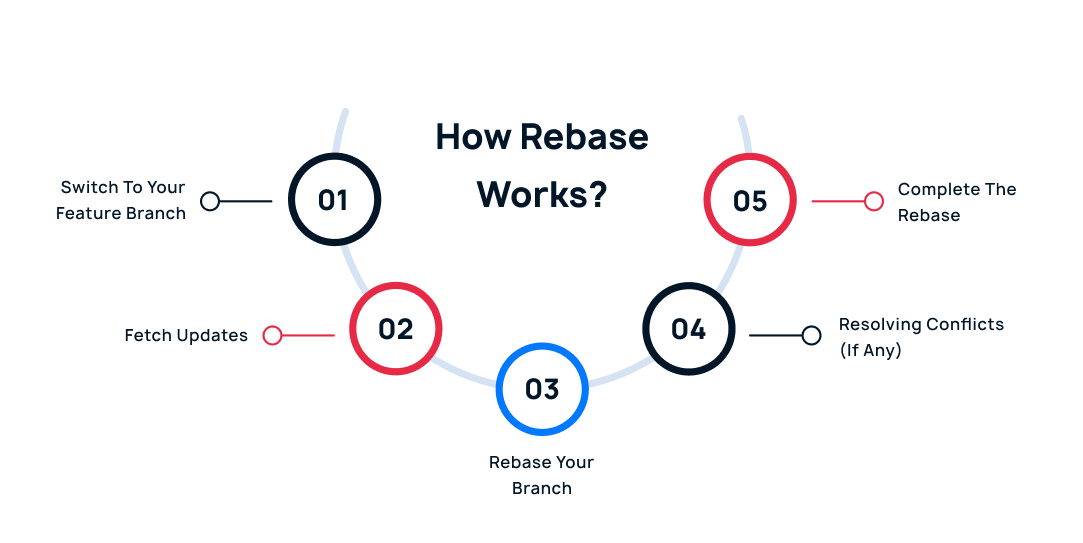
Switch to your feature branch
Use the Git checkout feature to navigate to your feature branch.
Fetch updates
Ensure you have the latest changes from the main branch with Git fetch origin.
Rebase your branch
Execute Git rebase origin/main. This replays your feature branch commits on top of the latest main branch.
Resolving conflicts (if any)
Rebasing might encounter conflicts if your changes overlap with edits made in the main branch. Git will halt the process and present you with the conflicting code sections. You need to manually edit these sections to resolve the conflicts and tell Git how to proceed.
Complete the rebase
Once all conflicts are resolved, use Git rebase –continue to finish replaying your commits.
Merging vs. Rebasing: Choosing the Right Strategy for Your Git Workflow
Merging
This is the simpler approach. Here, Git creates a new commit that combines the changes from your feature branch with the latest changes in the main branch. This leaves a clear record of where your feature branch diverged and merged back in.
master ---- A --- B --- C (main branch)

                 /

feature ----- D --- E --- F (your feature branch)
merge commit (combines changes)
Rebasing
This rewrites history a bit. It replays your feature branch commits on top of the latest changes in the main branch, essentially moving your feature branch’s starting point. The result is a linear commit history, making it seem like you developed your feature on top of the latest code.
master ---- A --- B --- C --- D --- E --- F (all commits appear linear)
                                         (your feature branch commits replayed)
Choosing Your Weapon: When to Use Each
- A safe bet for public branches or collaborative projects. It preserves the entire commit history, making it easier to track changes made by different developers.
- Ideal for private branches or solo projects. It creates a cleaner, linear history, which can be easier to navigate and understand. However, use caution, as rebasing rewrites history, potentially causing issues if others have already pulled your branch.
Additional Rebasing Commands and Options
Interactive Rebasing
Interactive rebase (Git rebase -i) empowers developers to meticulously manipulate commits before integrating them. This interactive mode facilitates actions such as squashing, reordering, or even rewriting commit messages, thereby fostering a cleaner and more coherent commit history.
Example:
To squash the last three commits into a single commit during an interactive rebase:
git rebase -i HEAD~3
Subsequently, replace pick with squash or s for the commits slated for consolidation.
Resolving Conflicts
Conflict resolution is an inevitable aspect of the rebase process, occurring when Git encounters divergent changes that cannot be automatically merged. Git halts the rebase operation, prompting developers to address conflicts manually before proceeding.
Example:
Upon resolving conflicts, the changes are staged and the rebase is resumed:
git add <resolved-files>

git rebase --continue
Aborting Rebasing
If you encounter issues during the rebase and want to abandon it, use Git rebase –abort to revert the process and go back to the state before the rebase began.
git rebase --abort
Let’s Wrap It Up!
While Git rebase furnishes developers with a potent tool for sculpting a pristine and linear commit history, its judicious application is paramount. Clear communication and a thorough understanding of its nuances are imperative to navigate the intricacies of Git rebase effectively within a collaborative development environment. Armed with this knowledge, developers can wield Git rebase as a formidable ally in their quest for streamlined and coherent version control workflows.
At LN Webworks, our experts are always prepared to help you make it happen. Get in touch with us right now to schedule a free consultation.
Author